
Clay-HubSpot Integration: How to Set It Up Without Breaking Your CRM in 2026

by

In this post:
Integrating Clay to HubSpot only takes a few minutes, because all you do is log in to HubSpot from Clay.
The real work is everything after that. Clay can change almost any field in HubSpot, so one wrong setting can overwrite a deal stage, create the same contact twice or replace a good phone number with a blank.
So before you connect anything, you need to decide which fields Clay can touch and which ones it should leave alone.
In this article, we’ll go through the whole Clay-HubSpot setup step by step, so you can do everything you'll need without breaking anything in your CRM.
If you own RevOps, marketing ops or the CRM at a SaaS or B2B company that uses HubSpot and Clay, this process is written for you. You can book a meeting if you’d like us to look at yours.
TL;DR
Keep one version of the truth by mapping your TAM in Clay, syncing it with HubSpot and pulling an active list of target accounts back into Clay every day.
The Clay HubSpot integration needs a Clay Growth or Enterprise plan, because CRM integrations aren't included on Free or Launch.
Decide which system owns each field before you sync, then write back with Update object matched on the HubSpot record ID, with a check in front of every write.
Let reps request enrichment from HubSpot itself, and refresh the records that matter on a schedule.
Nebor sets up Clay and HubSpot in your own accounts with a field ownership sheet, safe write-back rules and a scheduled refresh, then hands it over with a runbook. You can book a meeting to talk it through.
What the Clay HubSpot integration does, and what you need before you connect it
Clay's HubSpot integration works in both directions, and most of it can be automated. You can pull HubSpot records into a Clay table to enrich or research them, and you can push data back to HubSpot by creating or updating records.
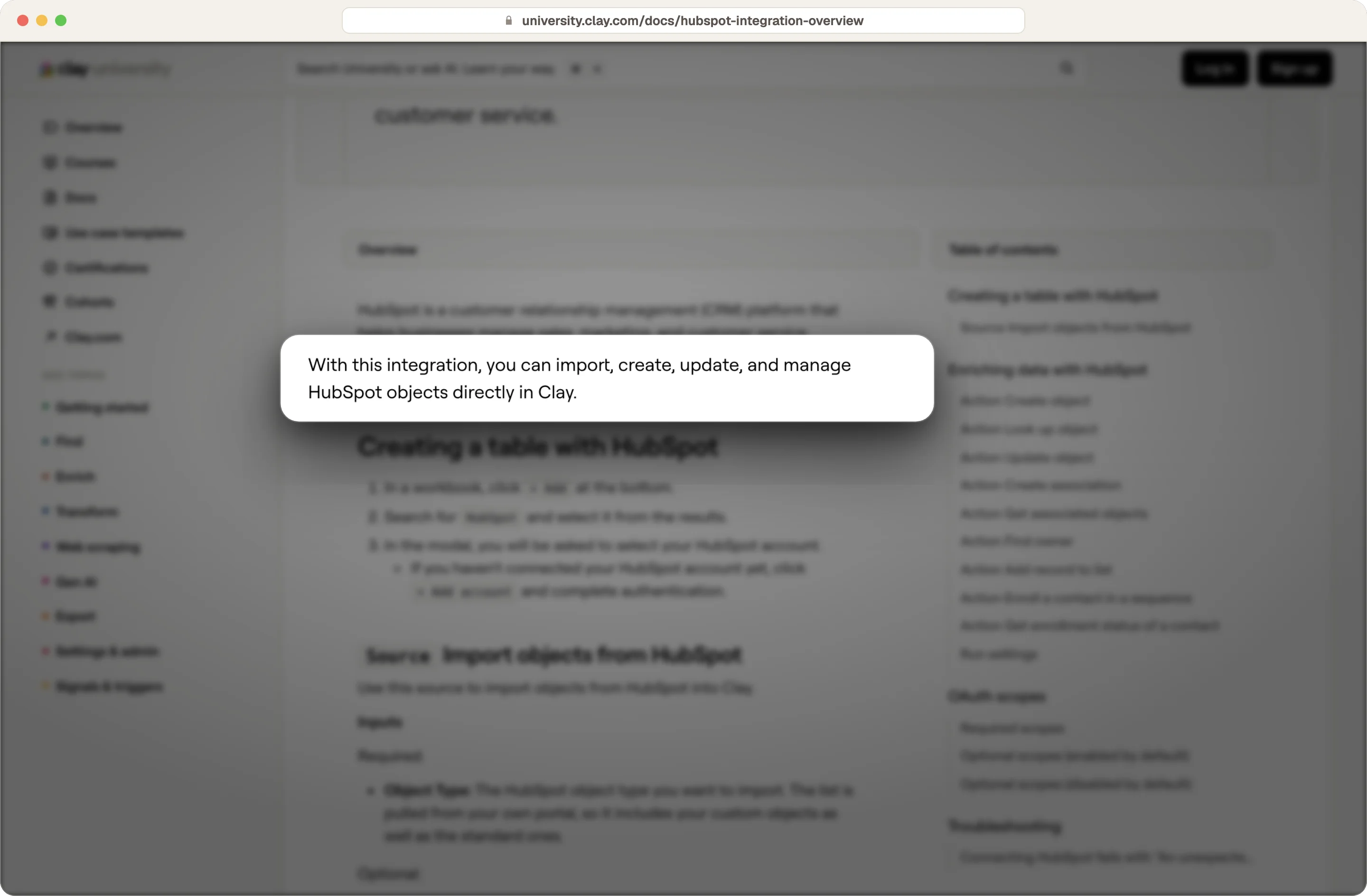
In practice, you use the first direction to fix and fill the contact records you already have, and the second to add new companies and decision makers you find through research. You'll usually need both, with different rules for each.
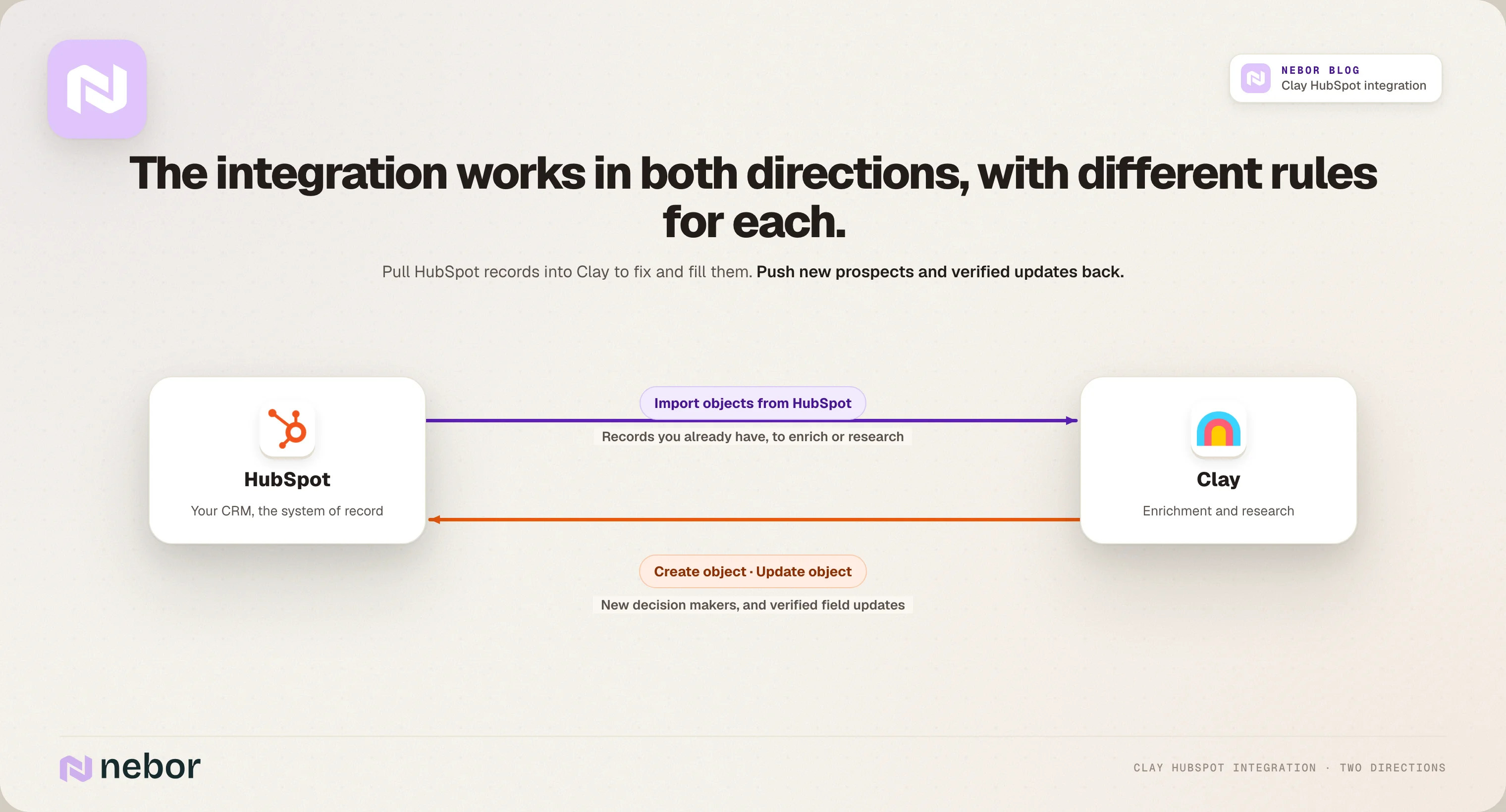
Clay gives you one source for pulling data in, Import objects from HubSpot, and these actions.
Create object, to add a new contact, company or deal
Look up object, to check whether a record already exists
Update object, to change fields on an existing record
Create association and Get associated objects, to link records or read their links
Find owner, to look up a HubSpot user
Add record to list, to put a record into a HubSpot list
Enroll a contact in a sequence and Get enrollment status of a contact
Source: Clay
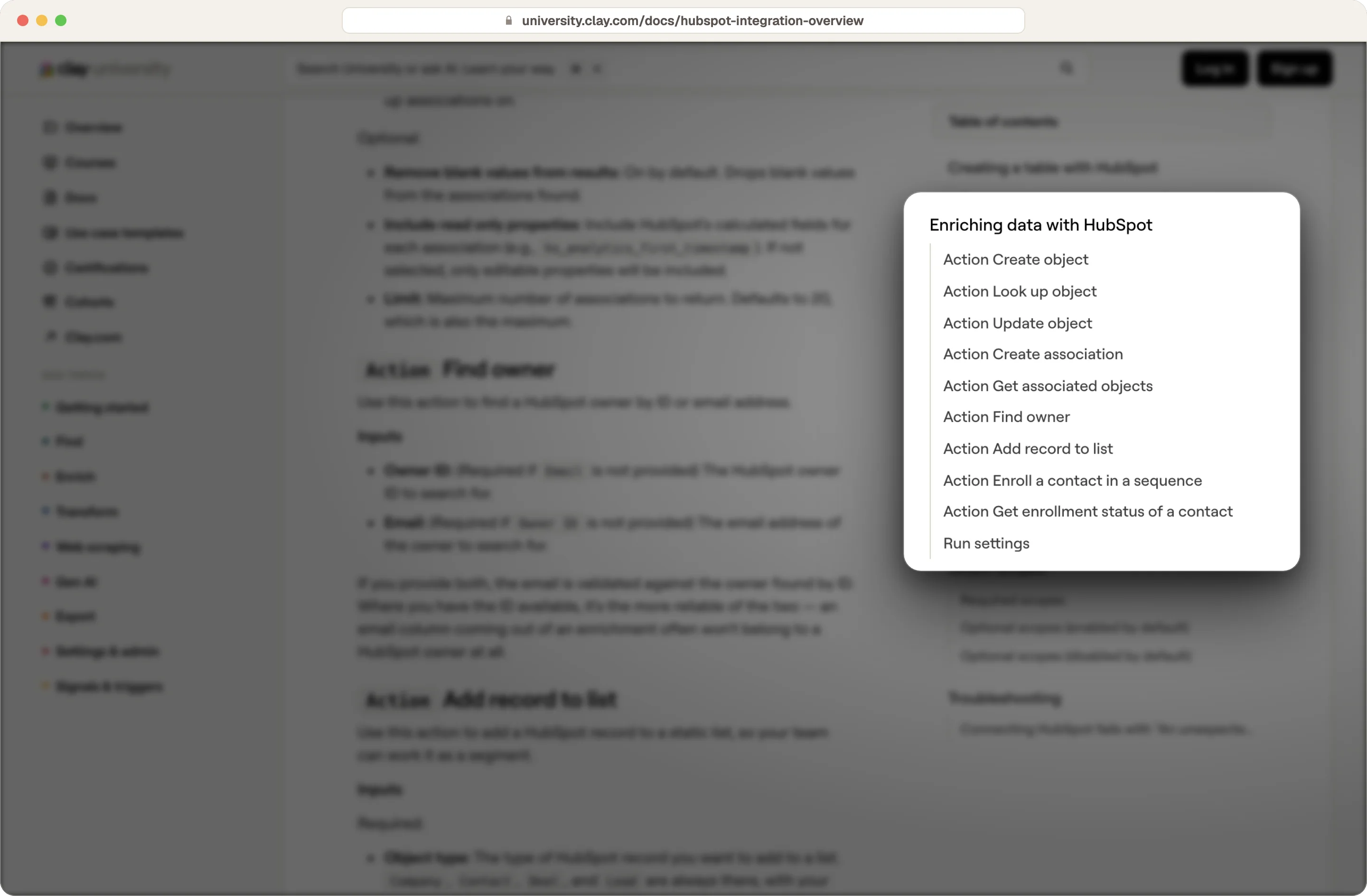
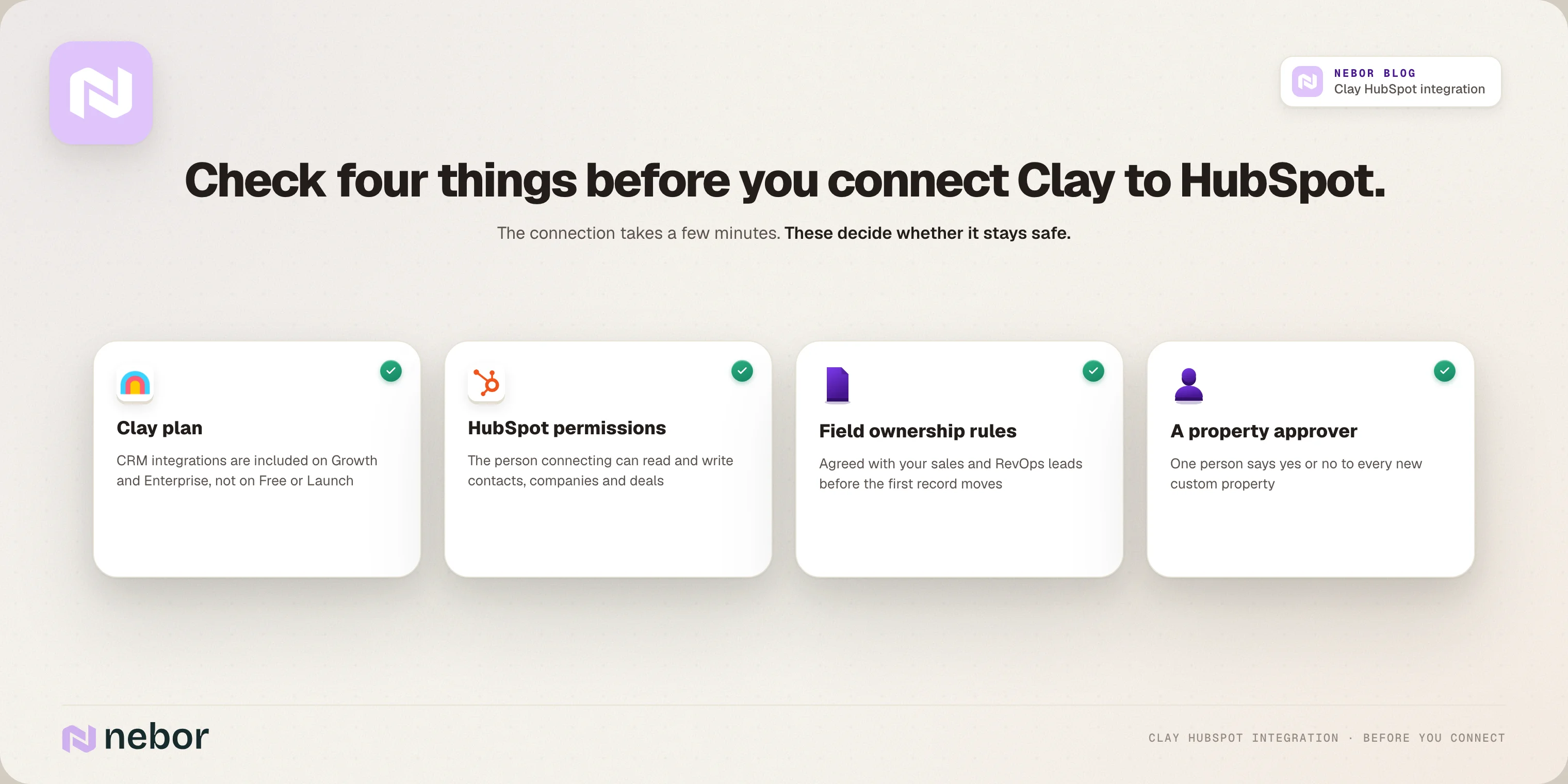
On Clay's pricing page, CRM integrations are included on the Growth and Enterprise plans, and Free and Launch show them as not included.
On the HubSpot side, the person connecting needs permission to read and write contacts, companies and deals. Agree on field ownership before the first record moves, and name one person who approves new custom properties, so HubSpot doesn't fill up with properties nobody uses.
If your HubSpot instance is already messy, fix your CRM data hygiene first, because enrichment adds detail to duplicate contacts too. Our guide to cleaning CRM data covers that cleanup.
Start with your TAM in Clay and keep it in sync with HubSpot
Your HubSpot probably doesn't cover your whole market. It has customers, old leads, partners and companies that were never relevant, and it's missing many accounts you'd want to sell to.
So every project we start begins with mapping the TAM in Clay. Pushing that TAM into HubSpot once leaves you with two truths that drift apart, so we set it up as a loop instead.
Map your TAM in Clay, with every company that fits your ideal customer profile.
Check which of those companies are already in HubSpot.
Update the records you want updated, and leave customers and open deals alone.
Create the companies that aren't in HubSpot yet.
Build an active list of your target accounts in HubSpot, and pull it back into Clay, where it updates every day.
To keep that list clean, we filter it with HubSpot's Target Accounts feature. That way partners, suppliers and your hosting provider stay off the list, even though they're in your CRM.
The list then feeds the signals you track, the people search and your LinkedIn ad audiences. A company someone adds to HubSpot by hand joins it automatically if it's a target account.
Since we started building it this way, it needs almost no maintenance.
Decide which system owns each field of your CRM data before you sync anything
This is the step most teams skip, and it's the one that protects your reporting and your pipeline structure. Your reports, your lead routing and your whole sales process depend on those fields being right.
HubSpot should own every field your automations and reports depend on. Clay should own the fields that go out of date and that a provider can check.
Here's the ownership sheet we start from with clients, and your team will need to adjust it to your own fields.
Field | Owner | What Clay may do |
|---|---|---|
Email address | HubSpot | Never overwrite, only use it to match |
Lifecycle stage and lead status | HubSpot | Never touch |
Contact owner | HubSpot | Never touch |
Original source and lead source | HubSpot | Never touch |
Deal stage, amount and close date | HubSpot | Never touch |
Job title and seniority | Clay | Update when the new value is verified |
Phone number and LinkedIn URL | Clay | Update when the new value is verified |
Industry, employee count and location | Clay | Update when the new value is verified |
Tech stack and funding | Clay | Update into its own property |
Research notes and signals | Clay | Add to its own property only |
For good CRM data hygiene, we'd also create a few HubSpot properties just for Clay, like the date Clay last enriched the record and a research notes field. That keeps Clay's output visible to reps and easy to filter, and it stays out of the fields your reports read.
Clay HubSpot integration setup, from connecting HubSpot to testing it on a few records
The connection itself takes a few minutes. The parts that need care are the permissions you grant and the test you do before anything touches real records.
Step 1: Connect HubSpot from a Clay workbook
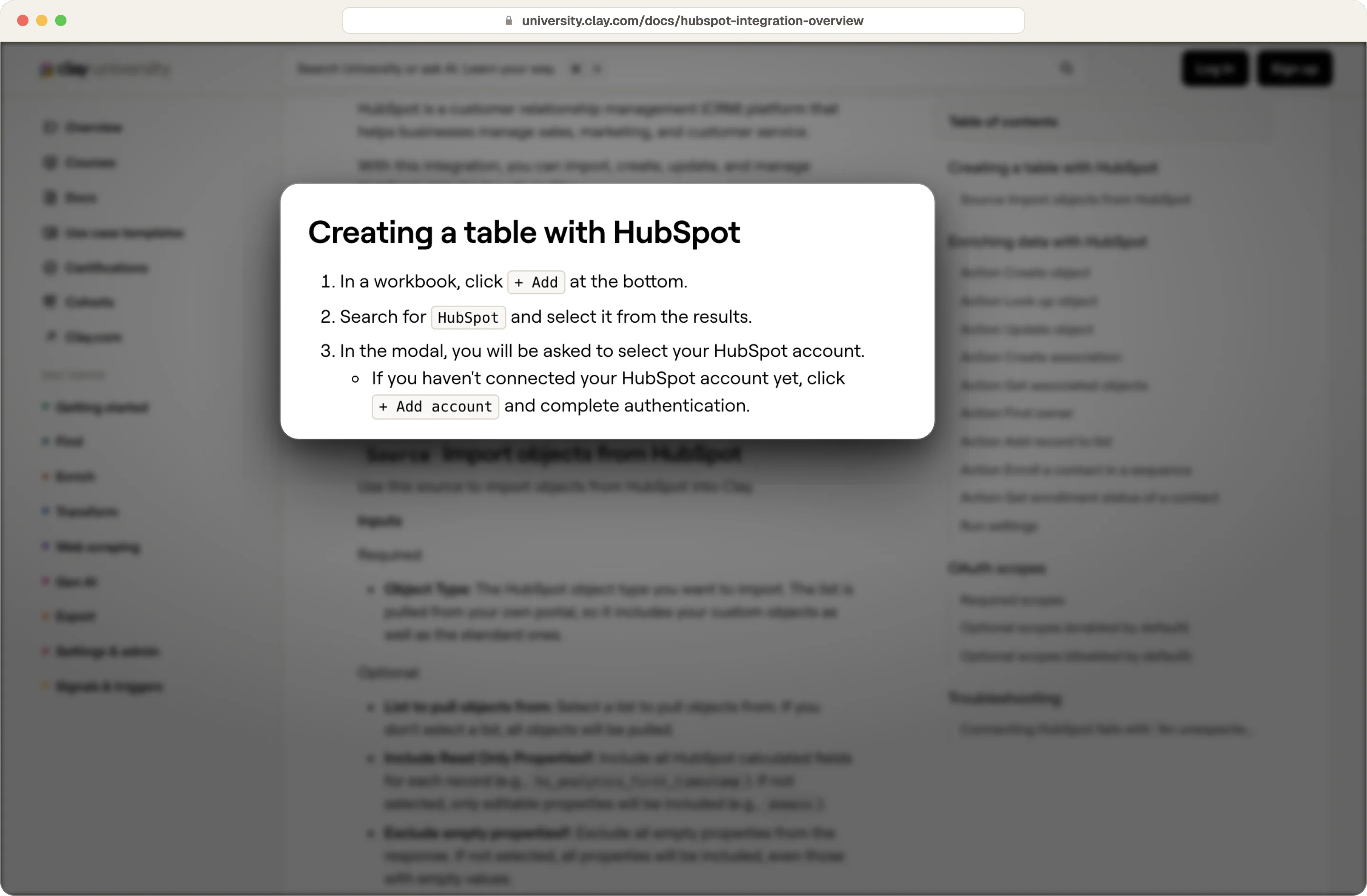
In a Clay workbook, click + Add, search for HubSpot and choose your account. The first time, you click + Add account and sign in to HubSpot to approve the connection. If your company has more than one HubSpot portal, like a sandbox and a production account, make sure you approve the right one.
Source: Clay
Step 2: Check which HubSpot permissions you're granting
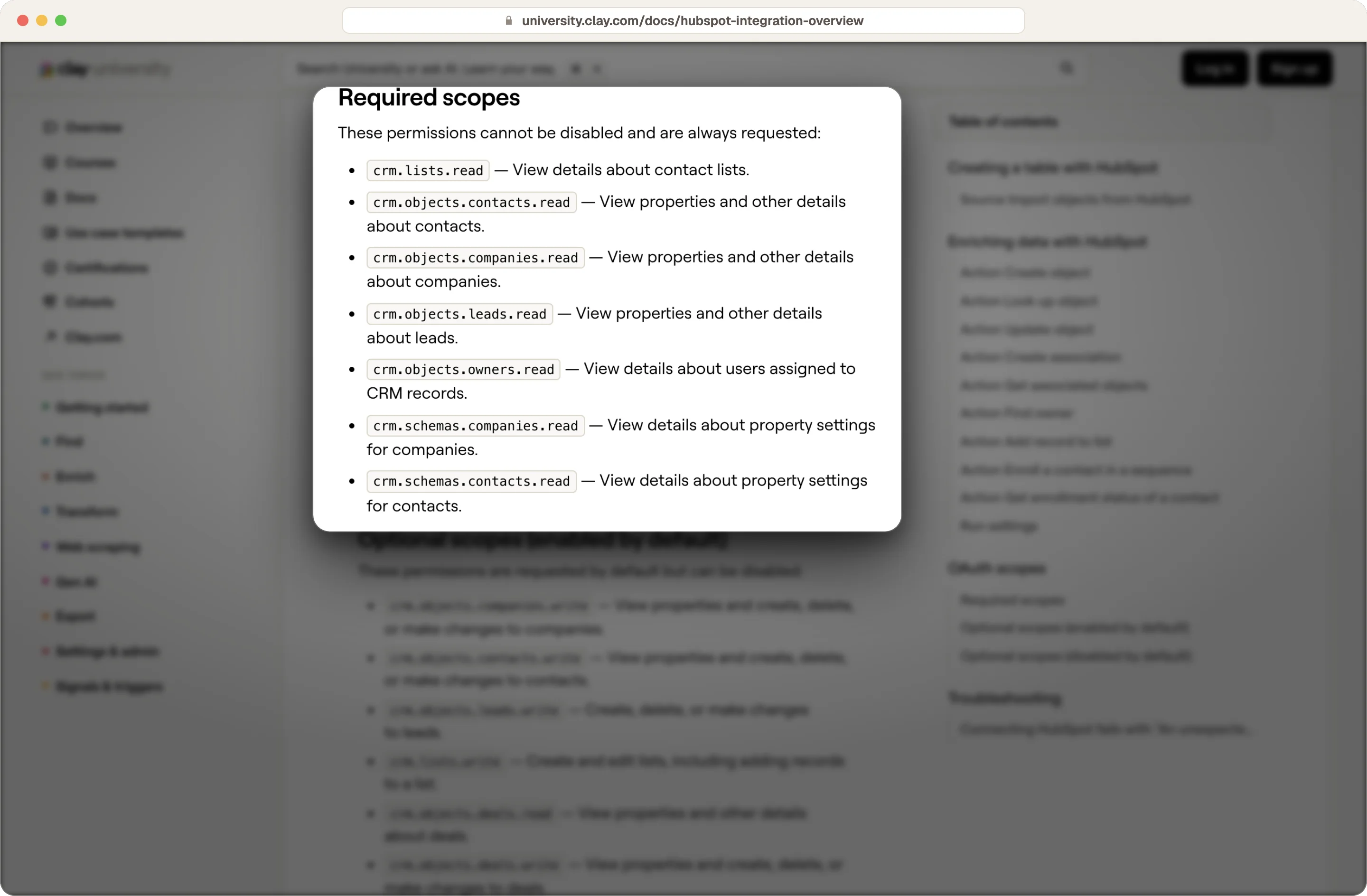
Clay always asks for a set of read permissions, like reading contacts, companies, leads, lists and owners, and you can't turn those off. Write permissions for contacts, companies, leads, deals and lists are on by default, along with a few others.
Source: Clay
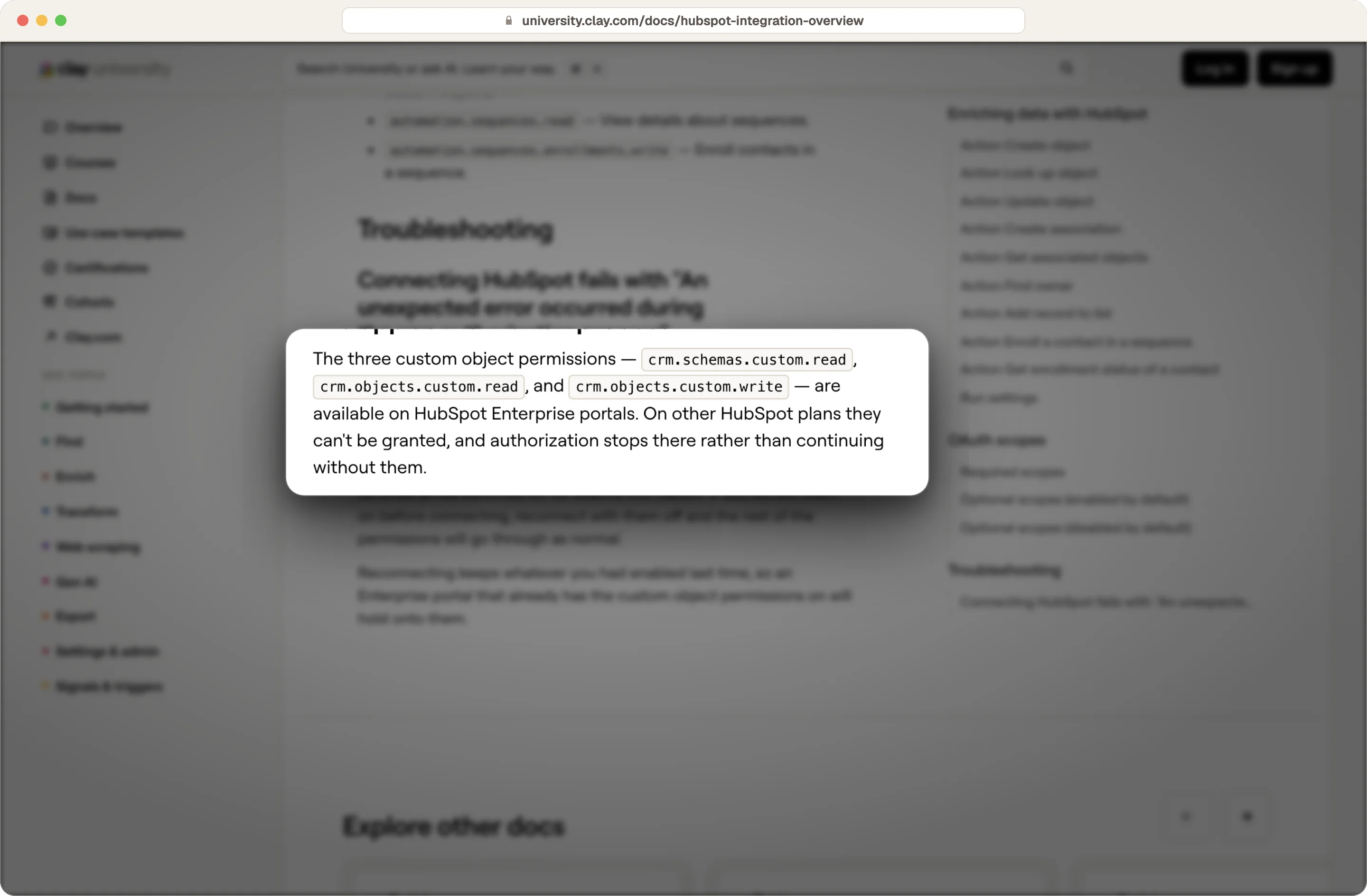
Custom object and sequence permissions are off by default. Clay's documentation notes that the connection fails if you turn on custom object permissions that need HubSpot Enterprise when your portal isn't on Enterprise, so only turn on what your setup uses.
Source: Clay
Step 3: Test the connection on a handful of internal records
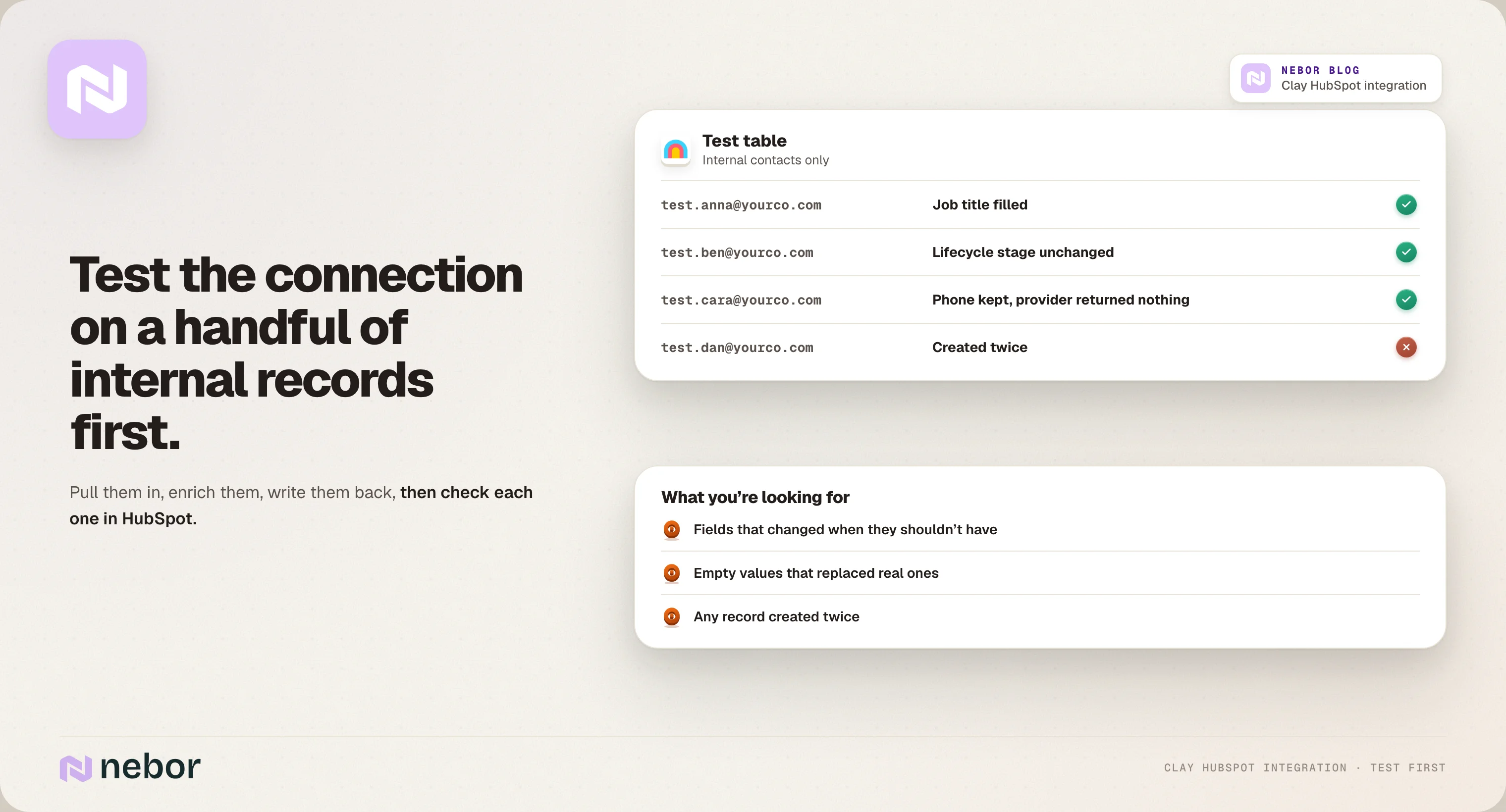
Before you point Clay at real customers and prospects, build a small table with a few internal or test contacts. Pull them in, enrich them, write the results back and check each record in HubSpot. You're looking for fields that changed when they shouldn't have, empty values that replaced real ones, and any record that got created twice.
How to pull HubSpot records into Clay for enrichment and research
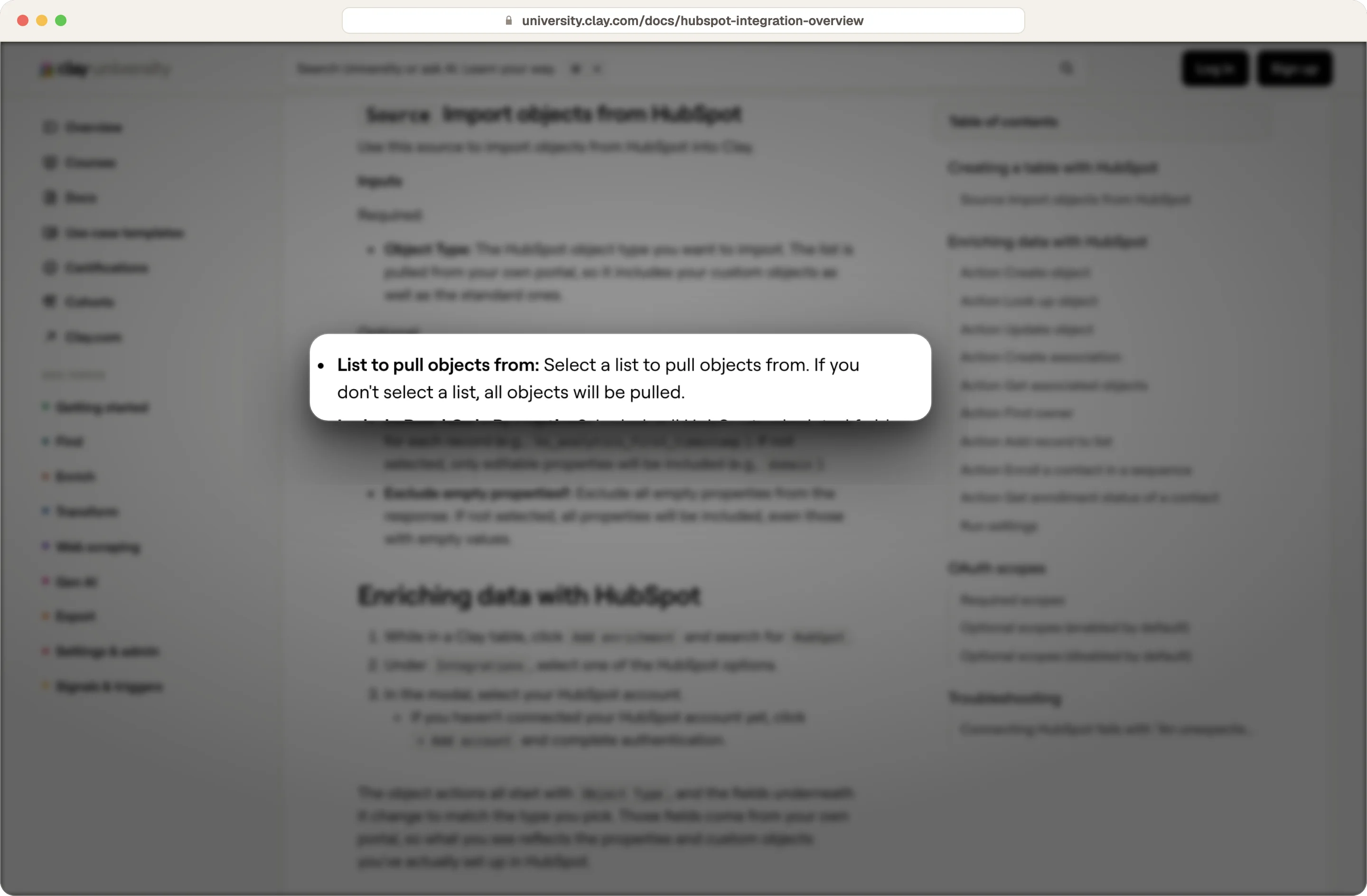
You bring records from HubSpot into a Clay table with the Import objects from HubSpot source. You choose the object type, like contacts or companies, and you can pull from a specific HubSpot list. If you don't pick a list, Clay pulls every record of that type.
Source: Clay
A list is almost always the better choice. Besides your target account list, good lists to start with are contacts on open deals with no job title, and new inbound leads that arrived with only a name and an email address.
Those are the CRM records your sales managers and reps feel the gaps in most, and pointing Clay at them means the enrichment process only spends credits on records that matter, even at scale.
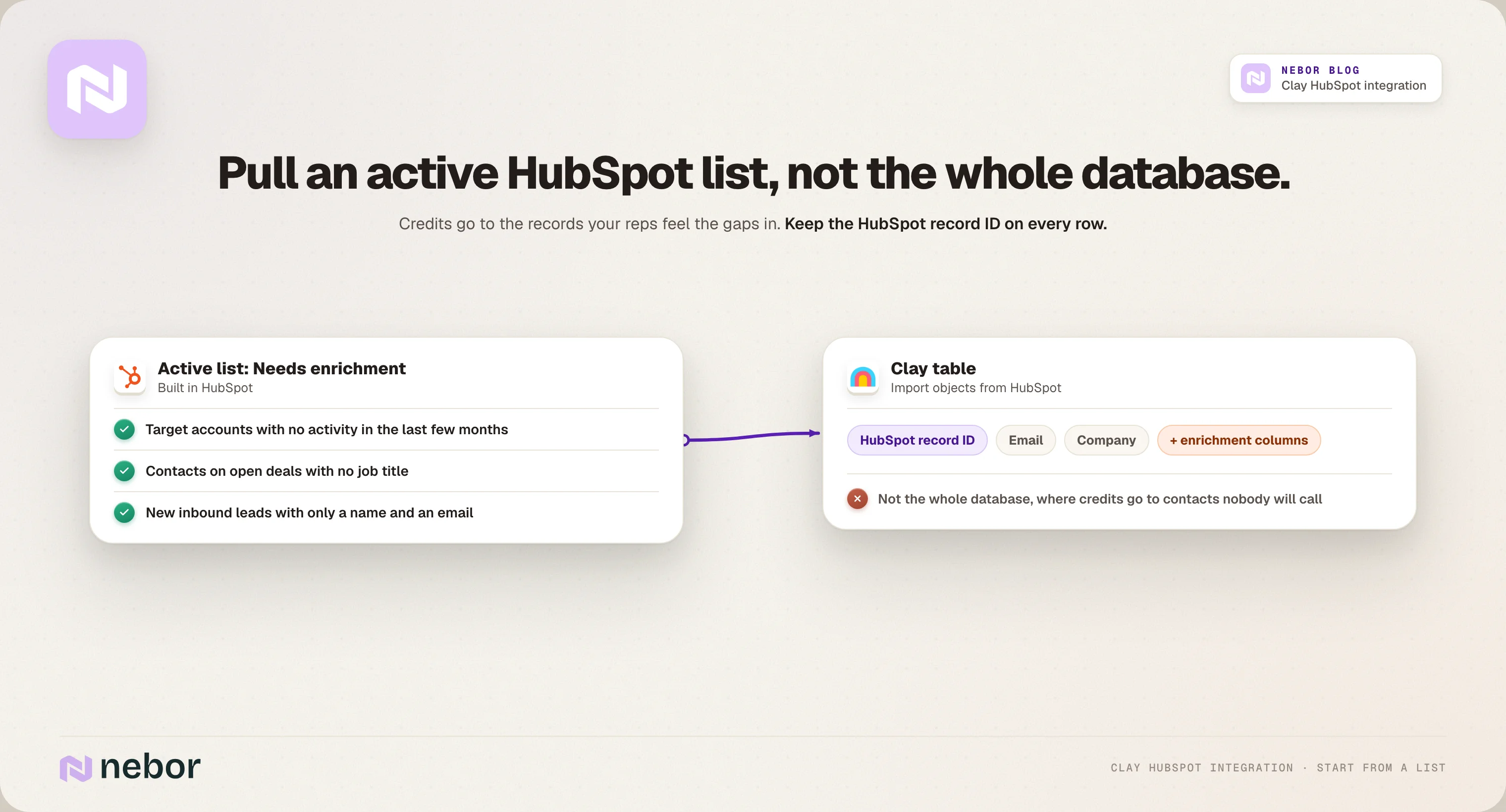
Make sure every row keeps its HubSpot record ID. That ID is what lets Clay update the right record later, and losing it is how duplicates start.
Once the records are in, you add your enrichment columns. We usually enrich through a waterfall, where Clay asks multiple sources in order and keeps the first good answer, so you get verified emails and better coverage without paying every provider for every record.
Combining multiple sources also gives you better material for personalized outreach, because AI in Clay can turn the research into talking points and your email sequences can use the account's real situation instead of a generic opener.
How to write Clay data back to HubSpot without breaking anything
Writing back is where a Clay HubSpot integration either earns your team's trust or loses it, and three rules keep it safe.
Match on the HubSpot record ID whenever you can
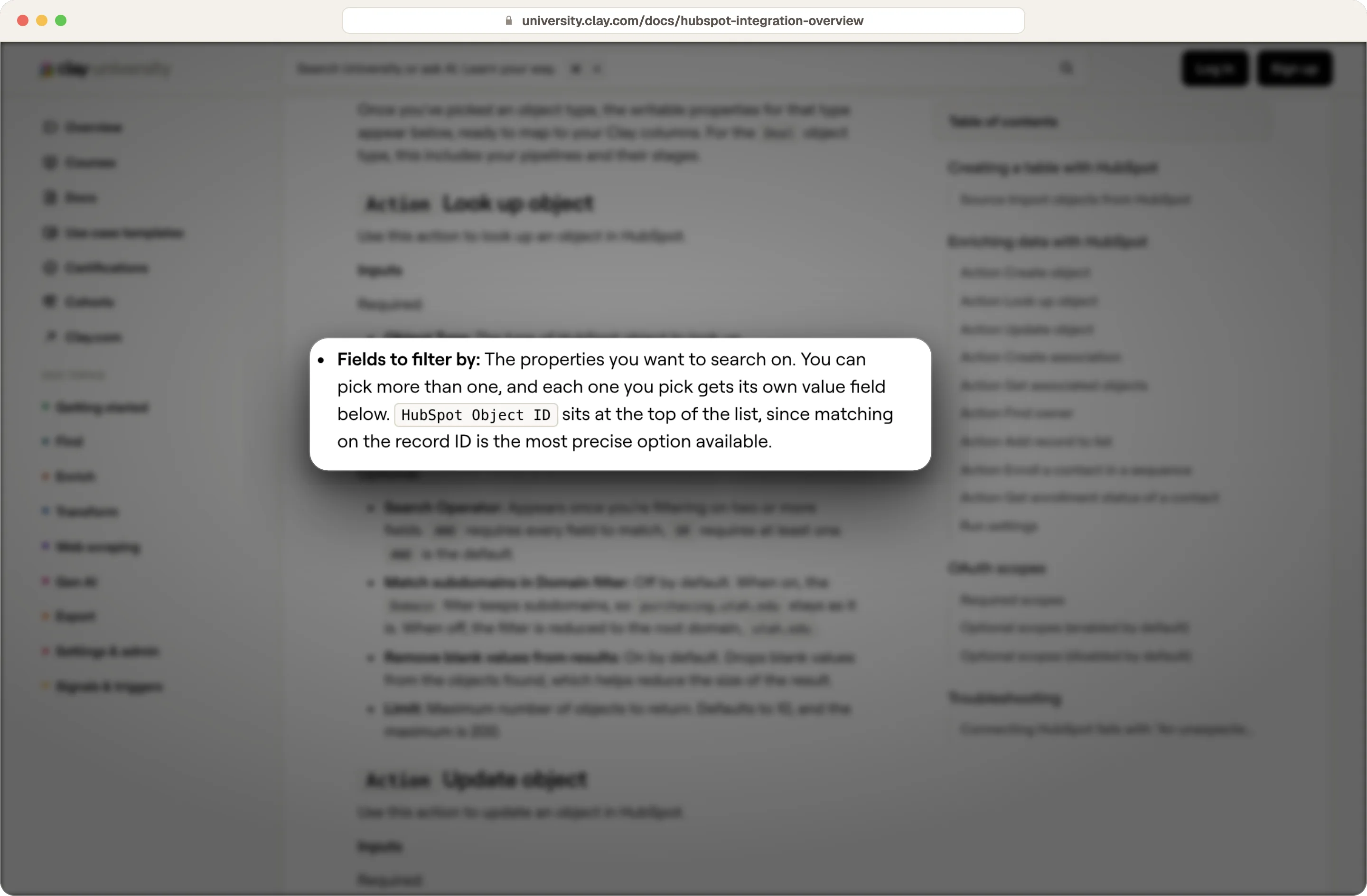
Clay's Look up object and Update object can match on the HubSpot record ID, the email address or the domain. Clay's documentation calls the record ID the most precise option, so for records that came from HubSpot, always update by record ID.
Source: Clay
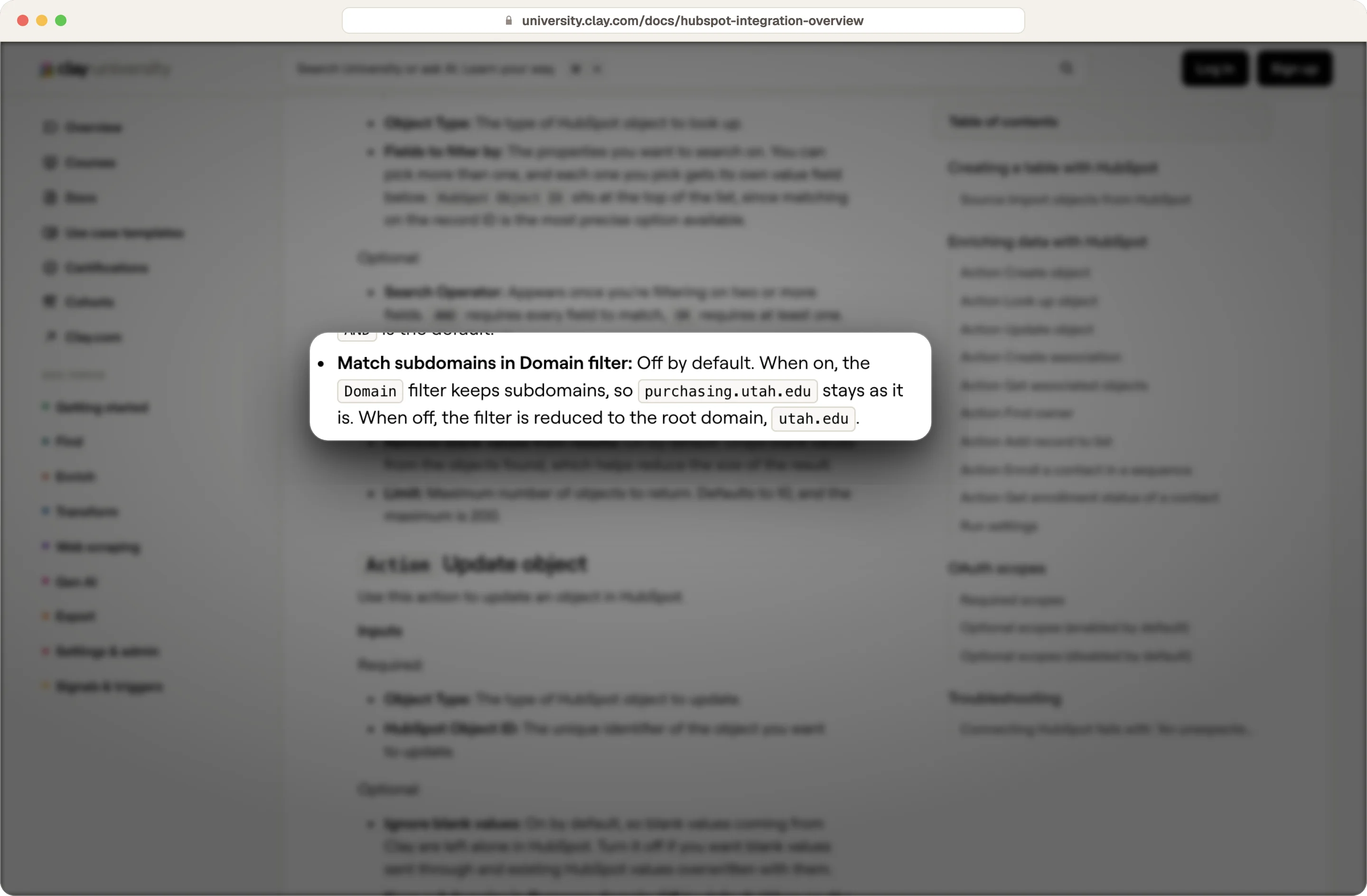
For contacts that came from outside HubSpot, match on email, and for companies, match on domain. Clay's domain matching reduces a domain to its root by default, so a subdomain and the main domain count as the same company unless you change that setting.
Source: Clay
Put a check in front of every write
Never send raw results straight into HubSpot. Conditional checks act as a safety layer between your research and your production CRM, so Clay only lets qualified contacts into HubSpot. Add columns in Clay that decide whether a row is allowed through, like whether the email is verified, whether the job title fits your buyer roles and whether the company fits your ideal customer profile, and only use the write action on rows that pass.
Keep the Ignore blank values setting on Update object switched on, which is Clay's default. If a provider returns nothing, the existing HubSpot value stays as it is. And only map the fields your ownership sheet allows, so a lifecycle stage or owner can never be overwritten by accident.
Create associations when you create new records
When Clay creates a new contact, it should also link that contact to the right company with Create association. A contact with no company drops out of company-based lists, reports and routing, so your sales team never sees it.
How to stop the Clay HubSpot integration creating duplicates
Duplicates usually come from a create step that didn't check first. So you need a Look up object step before every Create object, and a plan for each result.
One match found: Update that record with the fields your ownership sheet allows, and don't create anything.
No match found: Create the record, and associate it with its company.
More than one possible match: Don't create or update anything. Send the row to a separate review table, so someone in RevOps can decide.
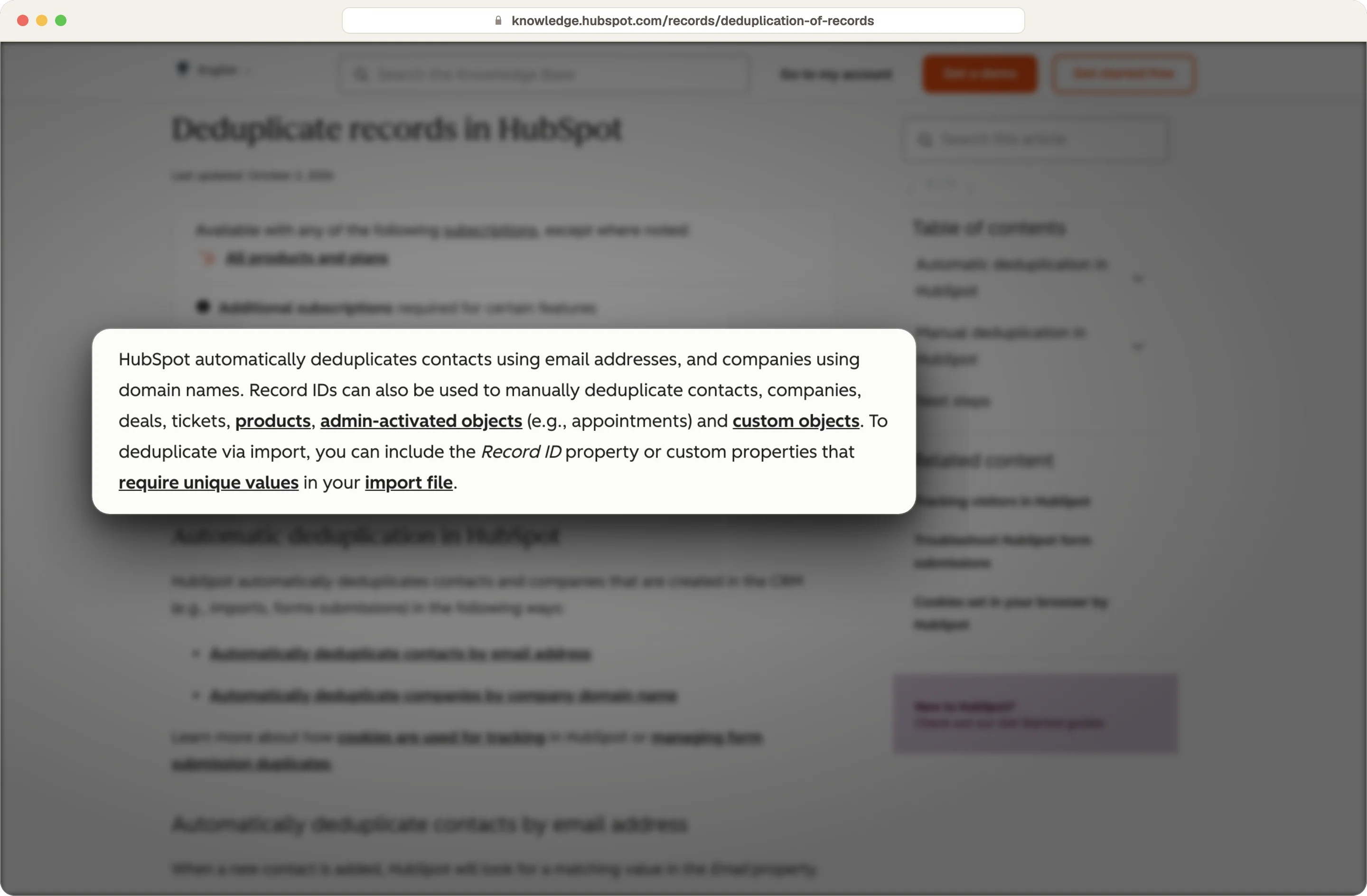
HubSpot helps a little on its side. Its deduplication matches contacts on email address and companies on domain, so a new record with the same email lands on the existing contact.
But the same person with a different email, or a company with no domain, still gets through, and that's why the lookup step in Clay matters.
How to let your reps request enrichment from HubSpot with a manual input flow
Your reps talk to prospects, partners and customers all day, and they often hear things before any tool does. Instead of manual work, like researching a company by hand or in ChatGPT, they can request the research from HubSpot with a simple manual input workflow automation.
Your reps only have to add a company, contact or deal in HubSpot, and a workflow sends it to Clay through a webhook. A few minutes later, the record comes back with a summary of the account, the data points they need and the people to contact.
We covered the full setup in our guide to the manual input flow for lead research.
HubSpot's "Send a webhook" action needs Data Hub Professional or Enterprise. Without it, a small n8n workflow does the same job, and n8n's cloud plan starts at €20 a month billed annually.
You can even have cool things like your reps only typing a question mark in a contact's mobile phone field when they want the number. Next, Clay finds it, and it shows up on the record a couple of minutes later.
How to keep CRM data hygiene high with a scheduled Clay refresh
Enrichment isn't a one-time job, because people change roles, phone numbers stop working and companies change the tools they use. A record you enriched last year will surely be wrong today. Good CRM data hygiene keeps your outreach from looking like spam.
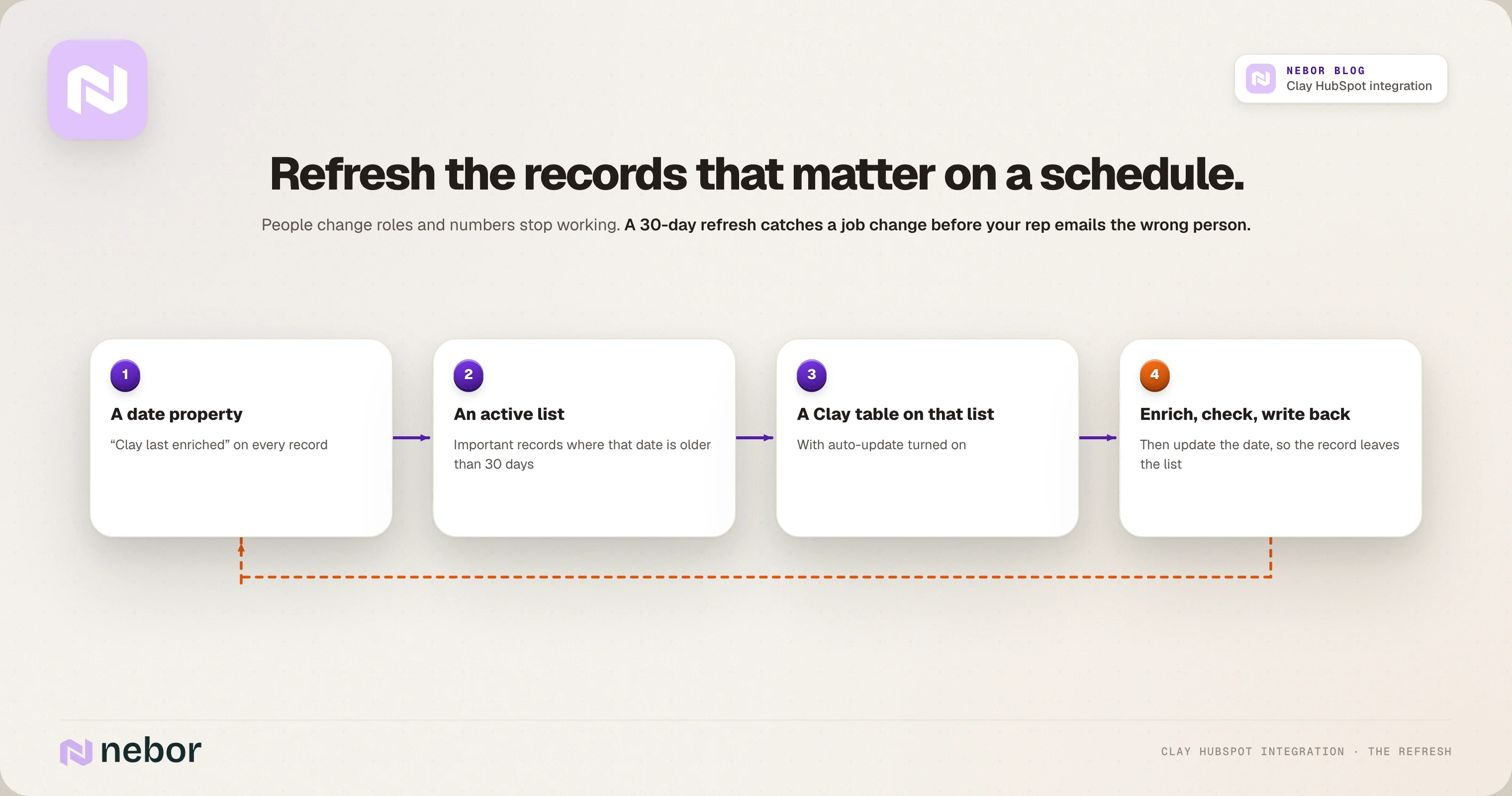
So set up an automated refresh on the records that matter most, like open deals, current customers and target accounts. Here's the simplest version we set up.
Add a date property in HubSpot for when Clay last enriched each record.
Build an active list of important records where that date is older than 30 days, or whatever gap fits your budget.
Point a Clay table at that list and turn on auto-update in the table's settings.
Enrich, apply your checks, write back, and update the date.
We'd refresh open deals and target accounts every 30 days, so a job change gets caught within a month and not on the day a rep emails the wrong person. Every refresh spends credits, though, so keep the list tight, because old closed deals and contacts nobody has worked in years rarely need fresh data.
For clients, we take that further with an automated CRM enrichment and hygiene workflow that checks important records every week and turns real changes, like a contact leaving an account, into a task for the owner.
Where Clay Workflows, n8n and your CRM workflows fit into a Clay HubSpot integration
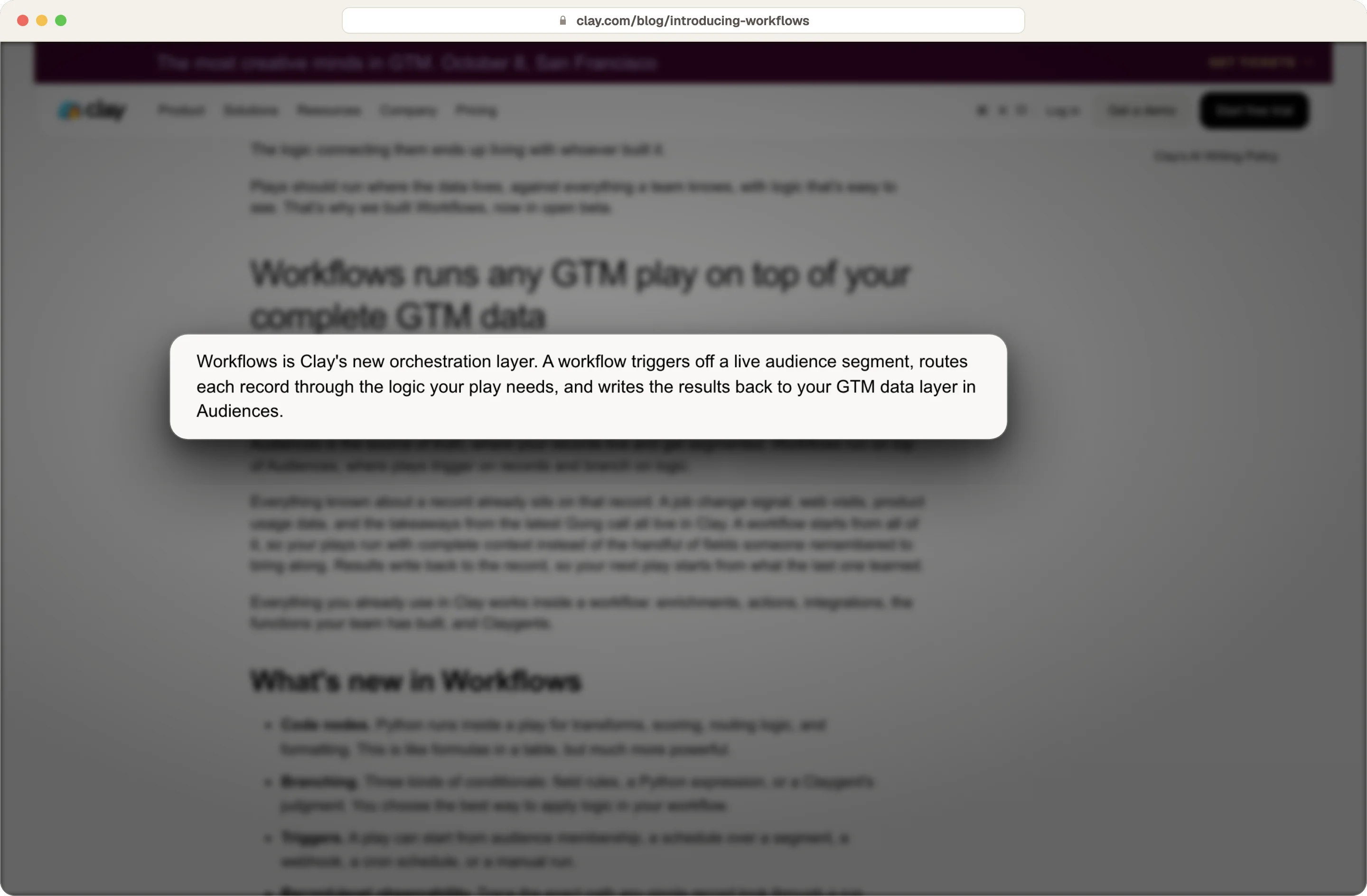
The standard advice used to be to enrich in Clay and hand any automated workflows with triggers or branching logic to n8n, Make or Zapier. Clay launched Workflows in August 2026, which lets you trigger a play from a live segment and route each record through conditions and agents.
Source: Clay
That covers a lot of what teams used n8n for, especially plays that start from data already in Clay, like a new decision maker joining a target account or a known company visiting your pricing page. We still use n8n when a play depends on events in other systems, needs logic Clay can't handle, or has to keep working whatever happens to your Clay plan.
That's also where signal-based selling comes together, because a real-time event like a new decision maker or a pricing page visit can trigger automated workflows and start outreach based on that buyer intent.
The mistakes we see most often when teams connect Clay and HubSpot
These are the problems we fix most often when a team asks us to look at their Clay and HubSpot setup.
Pushing the TAM into HubSpot once: Without the active list flowing back into Clay, the two lists drift apart.
Letting Clay write to lifecycle or owner fields: One mapping mistake can move a qualified lead back to a subscriber or hand a customer to the wrong rep.
Turning off Ignore blank values: An empty result from a provider then wipes the value that was already in HubSpot.
Pulling all the data from HubSpot instead of a list: You spend credits on contacts nobody will ever call.
Creating records without a lookup first: Every create step without a lookup is a duplicate waiting to happen.
Writing output from AI tools into fields your reports use: Account summaries belong in their own notes property, away from industry or job title.
Hire Nebor to build Clay and HubSpot into your GTM engine in your own accounts
We set up Clay and HubSpot around what your reps need to see when they open a record in the CRM.
We map your TAM in Clay, agree the field ownership sheet with your RevOps and sales leads, and build the sync loop, the checks, the scheduled refresh and the manual input flow. Then we connect it to your HubSpot workflows, lead scoring and HubSpot tasks, so the GTM engine spots new leads and starts outreach automatically.
You pay for your own Clay and HubSpot plans, and everything stays in your accounts with its own runbook. Across the systems we build, clients save more than 20 hours a week of routine work.
If your Clay data isn't reaching HubSpot the way it should, book a meeting and we'll go through it with you.
Clay HubSpot integration questions we get from RevOps and sales teams
Which Clay plan do you need for the HubSpot integration?
CRM integrations, including HubSpot, are on Clay's Growth and Enterprise plans. The Free and Launch plans don't include them.
How do you keep your Clay TAM and HubSpot in sync?
Map your TAM in Clay, update or create the matching companies in HubSpot, and mark them with HubSpot's Target Accounts feature. Then pull an active list of those target accounts back into Clay, so it updates every day and picks up companies your team adds by hand.
Can sales reps trigger Clay enrichment from HubSpot?
Yes, a HubSpot workflow can send a record to Clay through a webhook when a rep adds it or fills in a field, and Clay writes the results back a few minutes later. The webhook action needs Data Hub Professional or Enterprise, or you can use an n8n workflow instead.
Can Clay update existing HubSpot records, or only create new ones?
Clay can create contacts, companies and deals and update existing ones. Update object changes fields on an existing record, matched on the record ID, email or domain, and Create object adds a new one, which is why you need a lookup in front of it.
Do you need n8n or Zapier to connect Clay and HubSpot?
No, Clay connects to HubSpot directly through its own integration. You'd add n8n or Zapier when a play needs to start from an event in another system, when you need a webhook and don't have Data Hub Professional, or when the logic is more than Clay Workflows can handle.


Related Articles

By clicking Sign Up you're confirming that you agree with our Terms and Conditions.