
How to Set Up HubSpot Lead Scoring in 2026

by

In this post:
If you’re setting up lead scoring in HubSpot, you want one thing from it. You want your reps to open a record, see the score and know whether to call that person today.
To get there, you need to build the score in two layers.
The first layer is in HubSpot. You build a fit score for who the lead is and an engagement score for what they do, add decay so old activity fades, and use HubSpot’s A1 to C3 tiers so your reps can read the score at a glance.
The second layer adds what HubSpot can’t see. That’s intent, meaning the research a company does on you outside your own emails and forms, and what’s happening at the company, like a new sales leader or a funding round.
You can pull those signals in with tools like Clay and Stairoids, and send one combined score back to the same HubSpot record your reps already use.
In this article, we’ll walk you through both layers. You’ll see how to set up fit and engagement scores, limits, decay, and thresholds in HubSpot, where your full scoring model should live, and how score stages decide what each segment of your market gets.
If you lead marketing, sales or RevOps at a B2B company on HubSpot Professional or Enterprise, this setup is for you. You can book a meeting if you’d like us to set up yours.
TL;DR
HubSpot's lead scoring tool builds fit, engagement, and combined scores on Professional and Enterprise plans, and the old HubSpot Score property stopped updating on August 31, 2025.
Before you build anything, agree with sales on your ideal customer, based on the deals you've won and lost.
Keep fit and engagement apart, use negative points for anything that rules a lead out, leave email opens out, and use limits and decay so old activity fades.
Add intent and outside signals in Clay, send one score back to HubSpot, and use score stages to decide what each segment gets.
If you'd like it built for you, our team can help set lead scoring in your own HubSpot and hands it over so your team can change it. You can book a meeting to talk it through.
What HubSpot lead scoring is in 2026, and what changed when the old HubSpot Score was retired
HubSpot lead scoring adds and takes away points on a record based on rules you set, so your team can see which leads to work first. HubSpot's lead scoring tool gives you three types of score.
A fit score is about who the person or business is, based on properties like job title, company size, and annual revenue.
An engagement score is about what they do, like visiting pages, submitting forms or booking meetings.
A combined score uses both, and it creates three properties, the combined total plus a separate fit score and engagement score.

Source: HubSpot
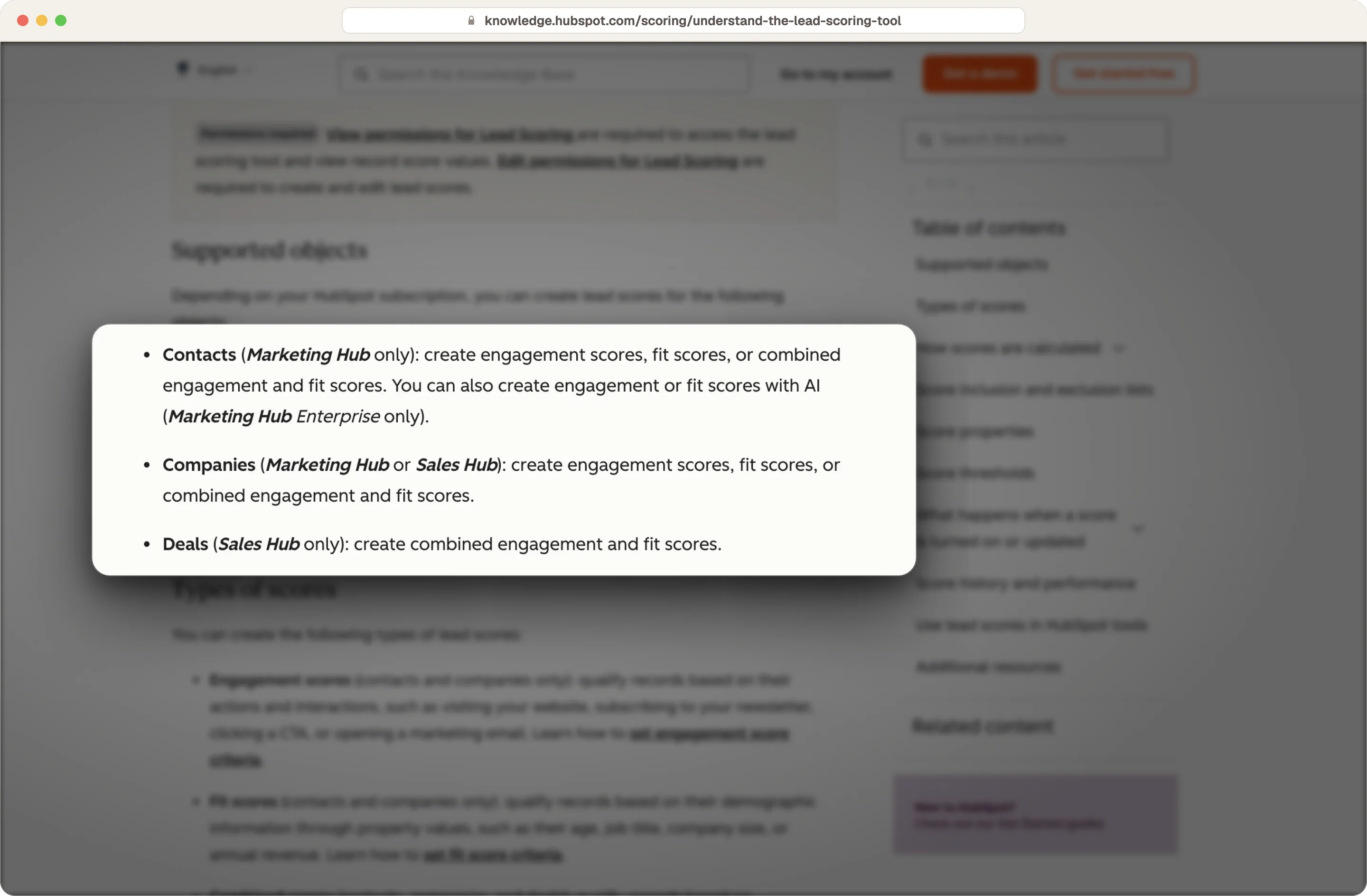
You can score contacts with Marketing Hub Professional or Enterprise. Company scores come with Marketing Hub or Sales Hub Professional and Enterprise, and deal scores need Sales Hub Professional or Enterprise, where they only come as combined scores.
Source: HubSpot
The old HubSpot Score stopped updating on August 31, 2025, so any workflow, list or report that still uses it has been working from frozen numbers ever since. If your portal is older than that, find that property first and swap it for your new scores.
What you need to agree on with sales before you build a lead score in HubSpot
A lead score is only as good as the definition behind it. If marketing builds the score alone, sales gets a number based on marketing's guess, and reps stop trusting it after the first few bad calls.
So you need to start with your deals. Pull the deals you closed in the last year and the ones you lost, then compare the company size, industry, region and job titles of the people who signed. Then look at what those buyers did before their first meeting, like the pages they visited and the forms they filled in.
If you haven't mapped your market yet, we have a guide on building your TAM that covers how we define the companies worth targeting.
Then agree with your head of sales on what the score is for. In most of our builds, it decides which leads go straight to a rep, which ones go into outbound and which ones stay with marketing.
You also need to check your data before you score it, because a fit score can't read a job title that's empty or a company size that's typed five different ways. Turn the free-text fields you plan to score into dropdowns, make sure contacts are linked to the right company, and fill the gaps with enrichment. We cover that cleanup in our list of CRM enrichment and data hygiene agencies.
Progressive profiling helps too, because your forms can ask a person for job title or company size on a later visit instead of all at once. Clean data matters more than clever rules, and a lead scoring model built on half-empty contact records can end up scoring the wrong people.
How to build a fit score in HubSpot that reflects your best customers
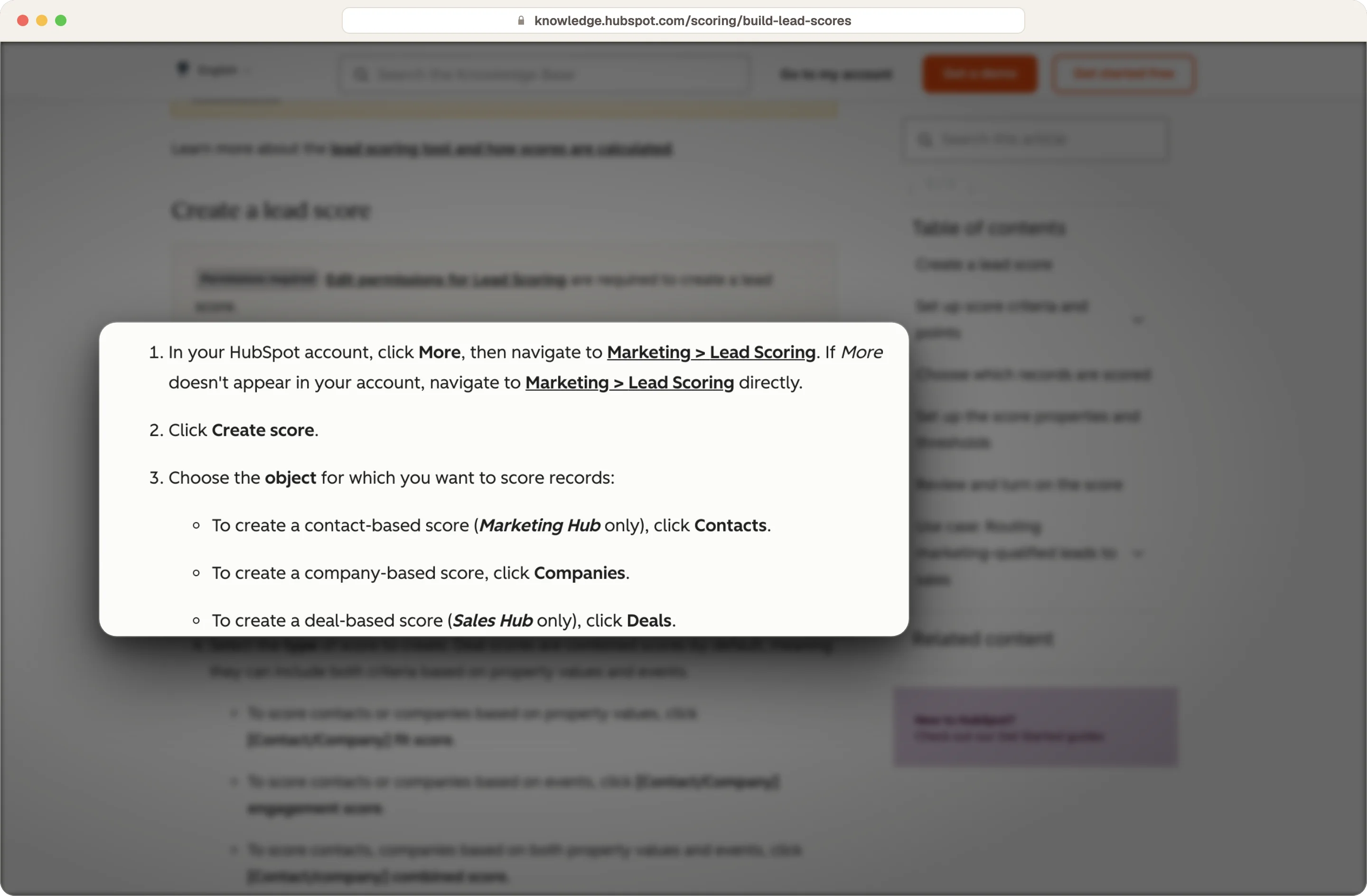
HubSpot's steps for building a score start in Marketing > Lead Scoring. You click Create score, choose Contacts, Companies or Deals, and pick the score type. For a fit score, you then add property groups, where each group holds the criteria for one theme, like role, company or region.
Source: HubSpot
Positive attributes give a person positive points and negative ones take points away. The negative ones matter just as much, because they keep students, competitors and free email addresses from drifting up the list. For role criteria, specific job titles like Head of Sales or VP Sales work much better than broad words like manager.
Here's an example contact fit score we'd start from. You'd replace the criteria and points with what your own won deals show.
Group | Criterion | Points |
|---|---|---|
Role | Job title contains Head of Sales, VP Sales or RevOps | +25 |
Role | Job title contains Student or Intern | −40 |
Account | Industry is one of your three best-converting industries | +20 |
Account | Number of employees falls within the range you win most | +20 |
Region | Country is one you sell into | +10 |
Email domain is a free provider like Gmail | −20 |
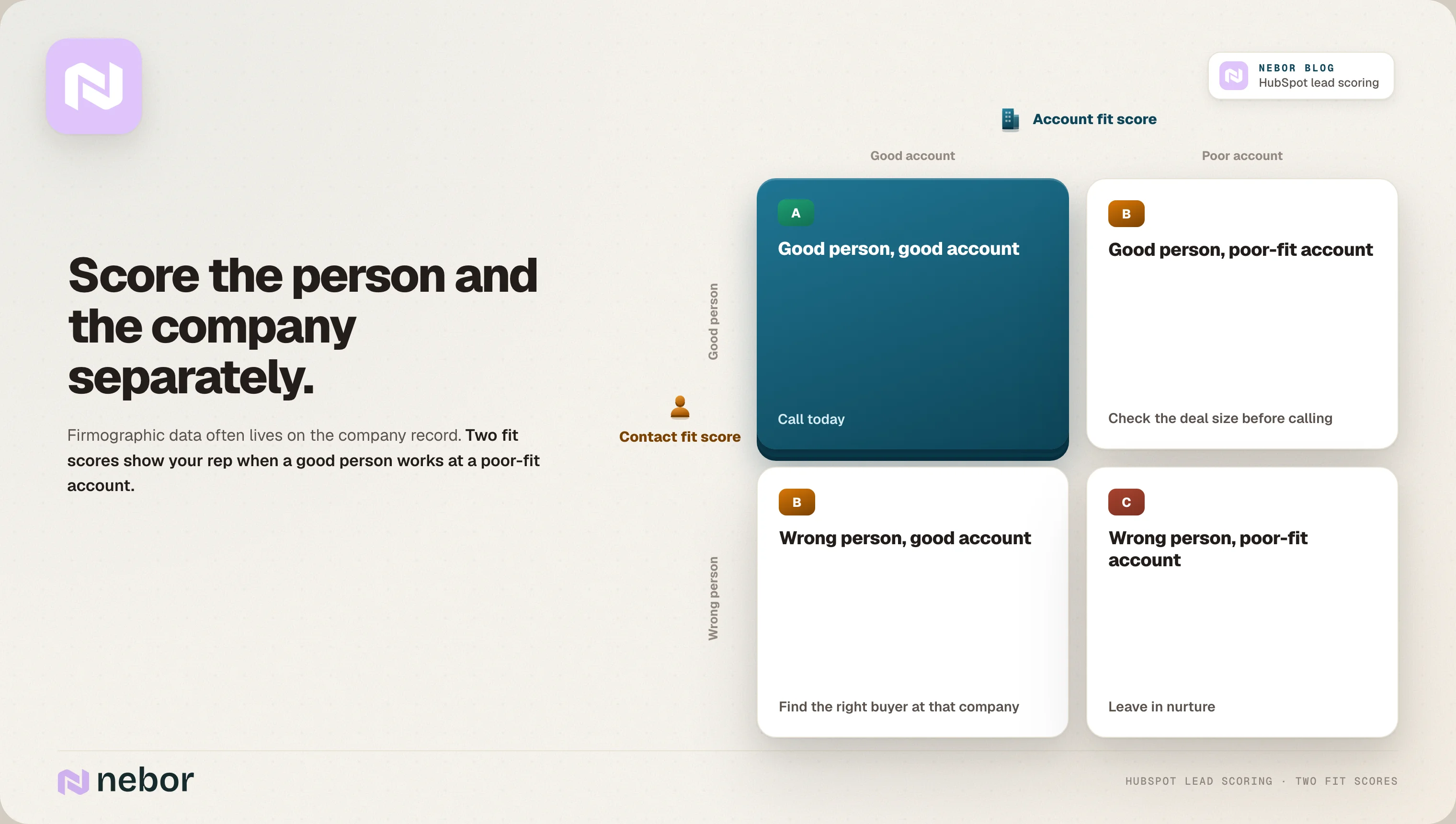
Most firmographic data lives on the company record, so we'd build an account fit score next to the contact score. That way your rep can see when a good person works at a poor-fit account, or the other way round.
How to build an engagement score from page views, forms and meetings without rewarding busy readers
HubSpot can score eight kinds of events: form submissions, website page visits, CTA clicks, marketing email opens, marketing email link clicks, call initiations, meeting bookings and meeting completions.
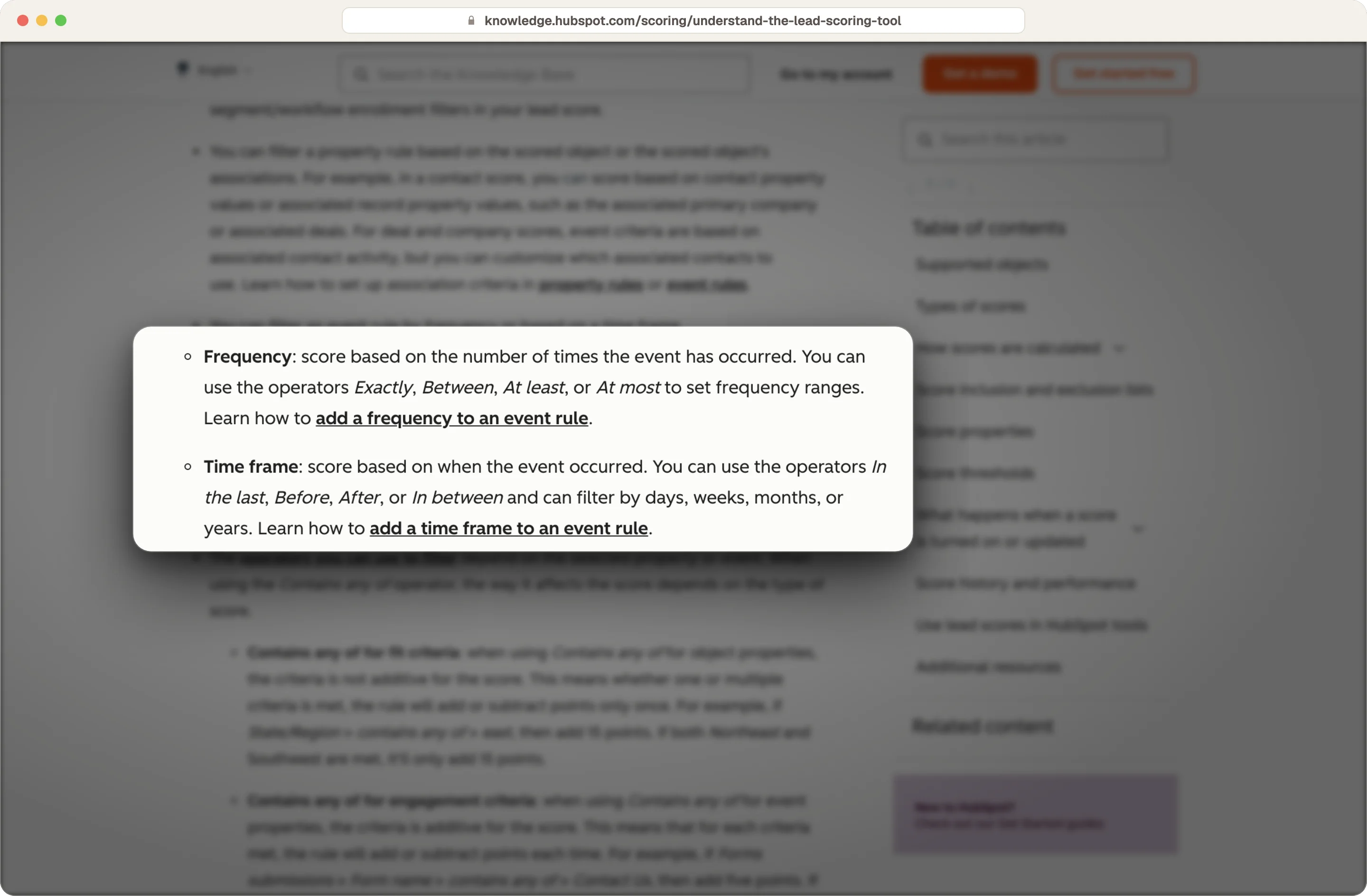
For each event, you set how many times it counts with the operators Exactly, Between, At least or At most. You can also add a time frame with In the last, Before, After or In between, measured in days, weeks, months or years.
Source: HubSpot
Those two settings decide whether your score is any use. Without a time frame, a pricing page visit from last year counts the same as one from this morning, and without a limit, one person who refreshes your pricing page ten times can max out the score alone.
We weight the score toward the actions that come closest to a sales conversation. Here's the order we'd use, from heaviest to lightest.
A booked or completed meeting, and a submitted demo form.
Pricing page visits in the last 30 days.
Visits to case studies and product pages.
CTA clicks and marketing email link clicks.
Blog visits and content downloads, with a low cap.
Page views deserve the most thought, because not every page means the same thing. Your key pages are the ones buyers look at right before they talk to sales, like pricing, case studies, integrations and comparison pages.
Those page views show product interest in a way a blog visit doesn't, and each one raises the lead score as soon as it happens, so we'd score key pages one by one and put everything else under a single capped rule.
We'd leave email opens out, because Apple's Mail Privacy Protection downloads emails in the background whether or not anyone reads them, so it records opens that never happened. If your team still wants opens in the score, keep them well below clicks, for example 10 points for an open and 20 for a link click.
Email signals can also take points away. A property rule can subtract 90 points when Marketing emails bounced is above zero, and a rule on Last marketing email open date can give negative points to a person who hasn't opened anything in six months, which usually means they've stopped reading.
How to set limits, decay and thresholds on your scoring properties so reps can read them at a glance
HubSpot gives you four settings that keep your scoring properties easy to read.
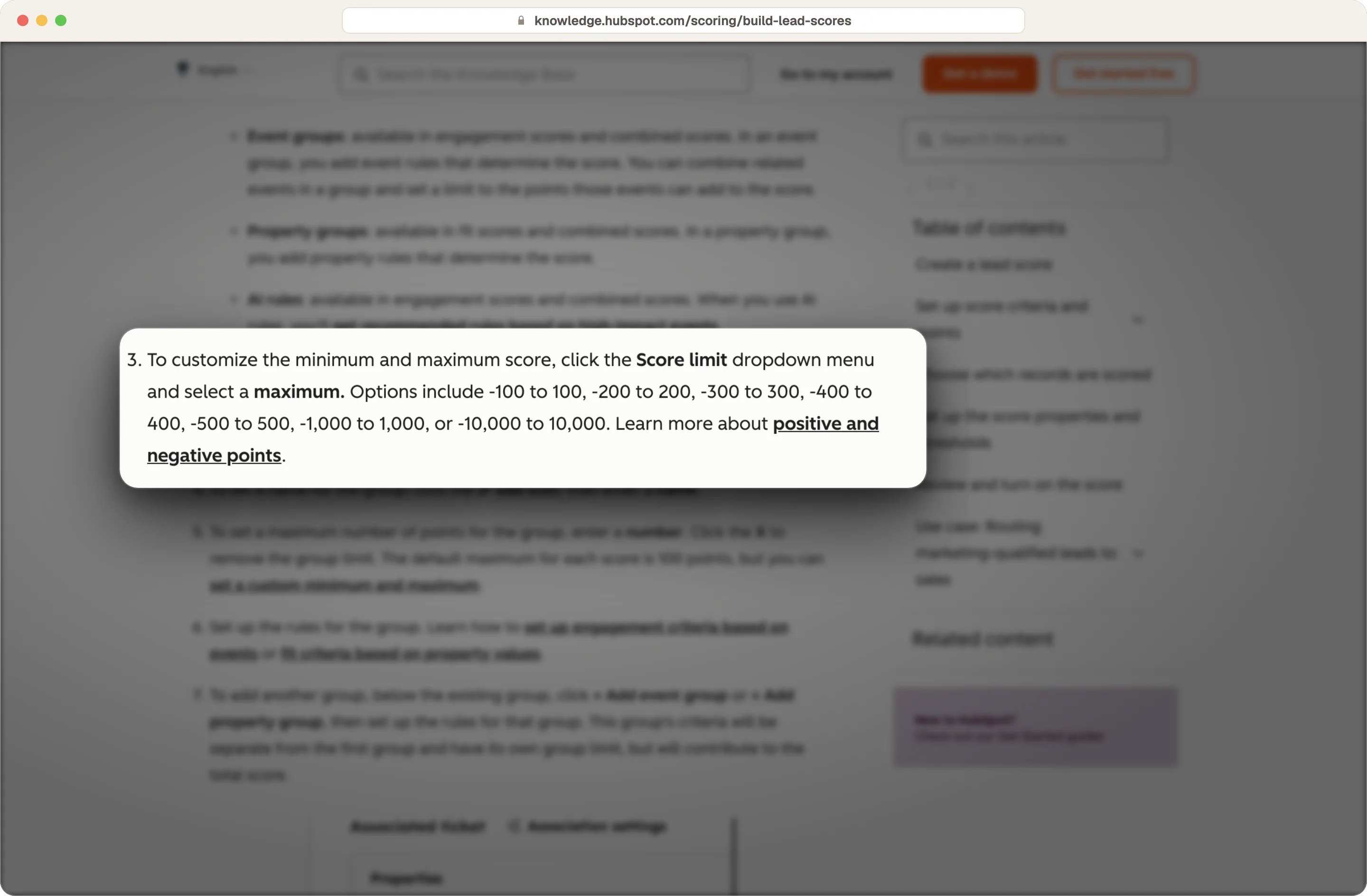
Score limits: You choose the overall range of the score, from −100 to 100 up to −10,000 to 10,000. We'd keep it at −100 to 100, because everyone understands a score out of 100.
Source: HubSpot
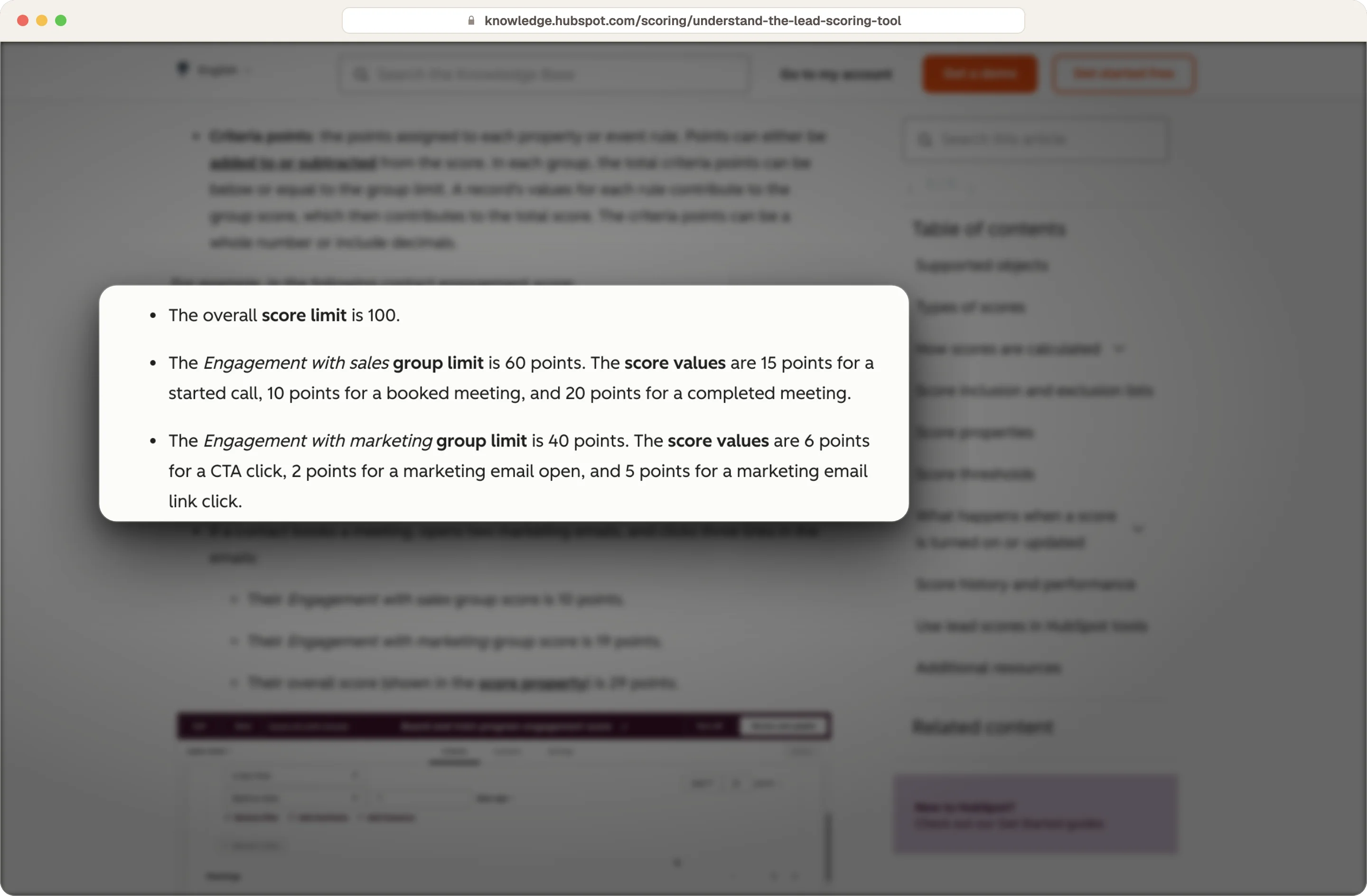
Group limits: Each group can have its own cap, and HubSpot's own example caps sales events at 60 points and marketing events at 40. Caps like these help ensure that one type of activity doesn't carry the whole score.
Source: HubSpot
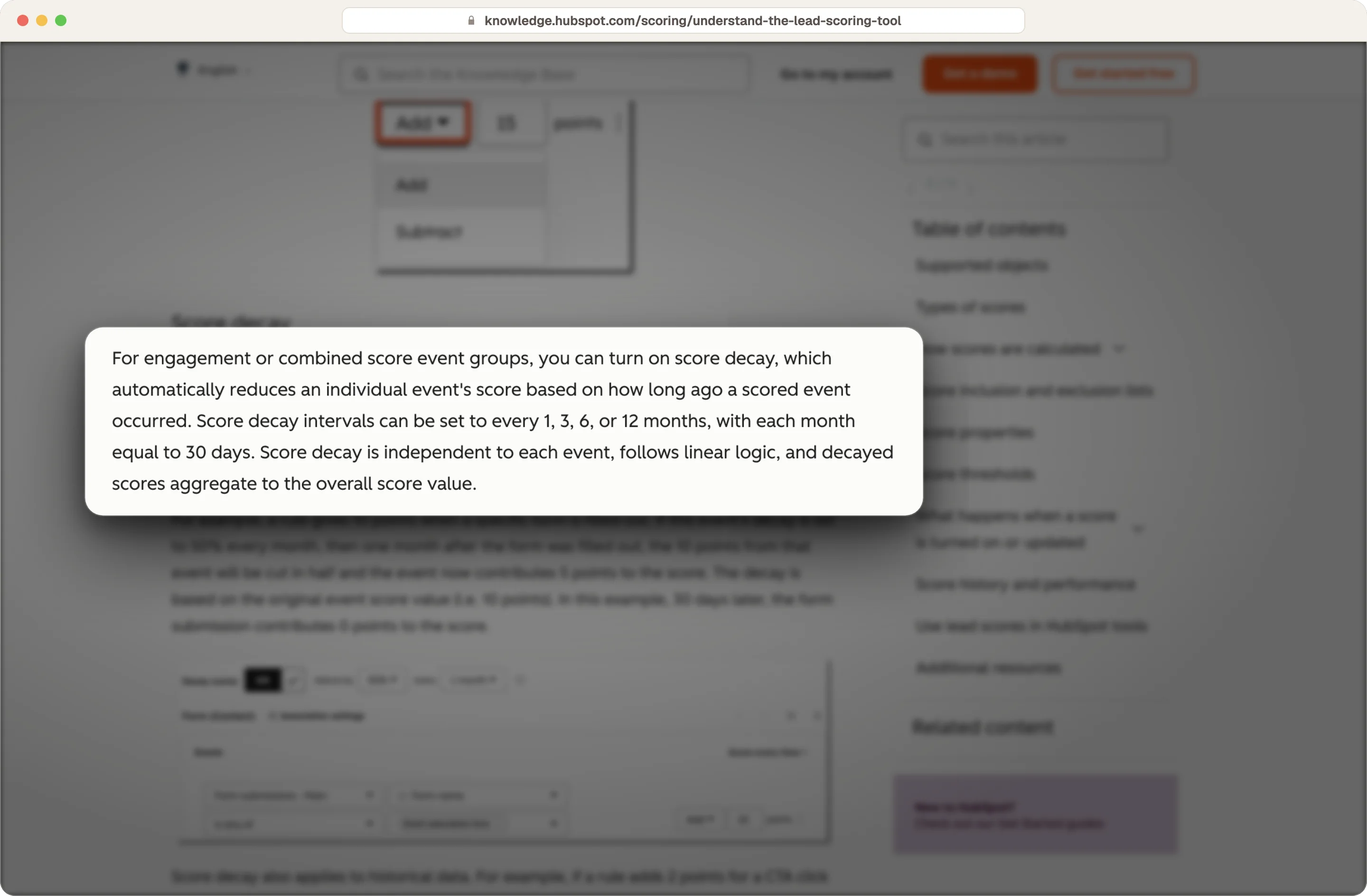
Decay: Decay helps lower the points from an event as it gets older, on a straight line over 1, 3, 6 or 12 months. It works on engagement and combined scores, and it's what stops a lead who was busy six months ago from still looking hot.
Source: HubSpot
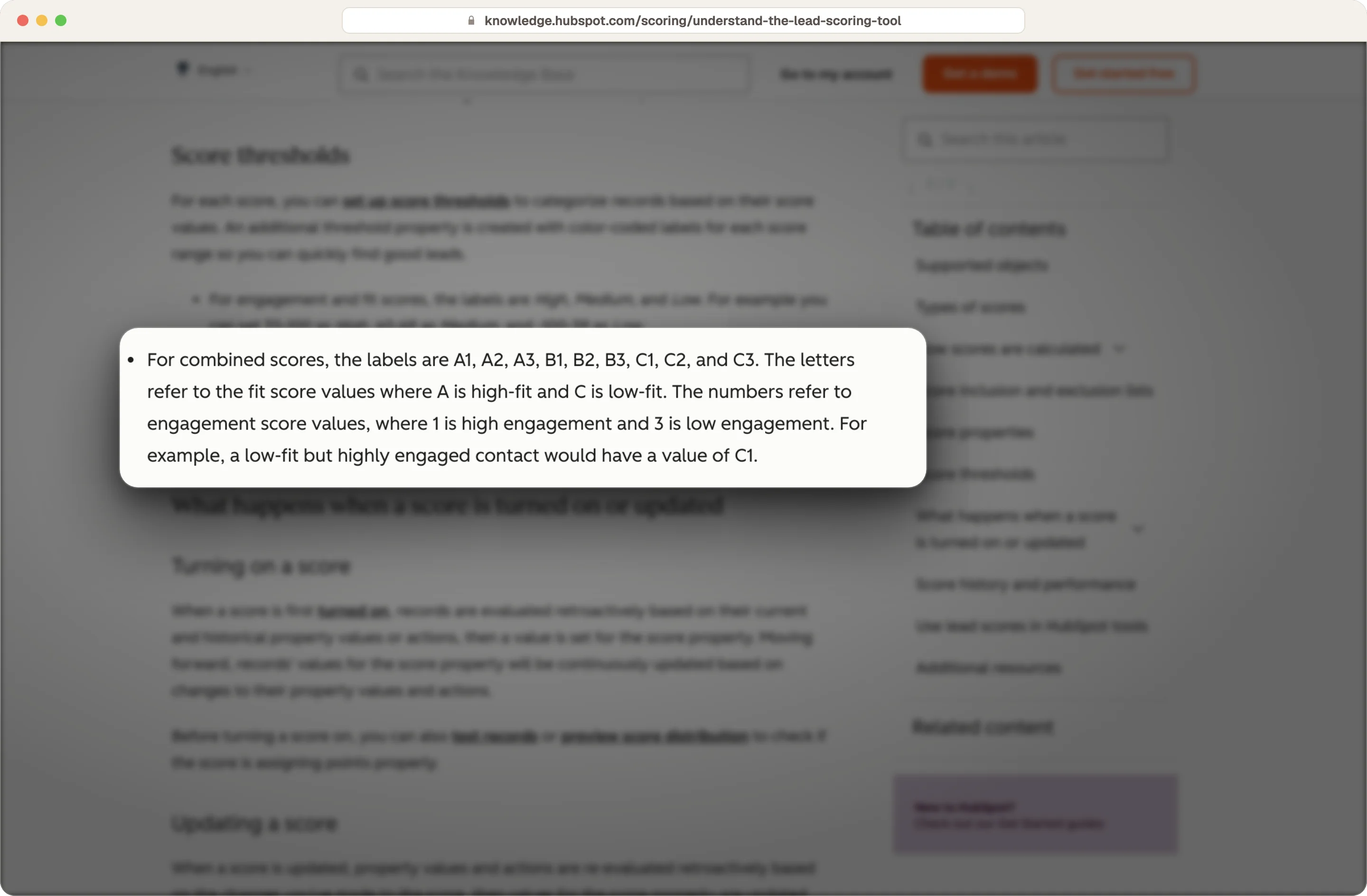
Thresholds: HubSpot turns the number into a label. Fit and engagement scores get three tiers, High, Medium and Low. A combined score gets nine tiers from A1 to C3, where the letter is the fit level and the number shows how active the lead is, and you can rename the labels to suit your team.
Source: HubSpot
Those nine tiers are where a combined score becomes useful to sales. Here's how we'd suggest your team acts on them.
Tier | What it means | What we'd do |
|---|---|---|
A1, A2 | Strong fit and recent activity | Hand to a rep today |
A3 | Strong fit, little activity | Add to outbound and target with ads |
B1, B2 | Decent fit and active | Hand to a rep after a quick check |
B3, C3 | Weaker fit and quiet | Keep in marketing nurture |
C1, C2 | Poor fit but active | Nurture, and review the fit rules if this tier grows |
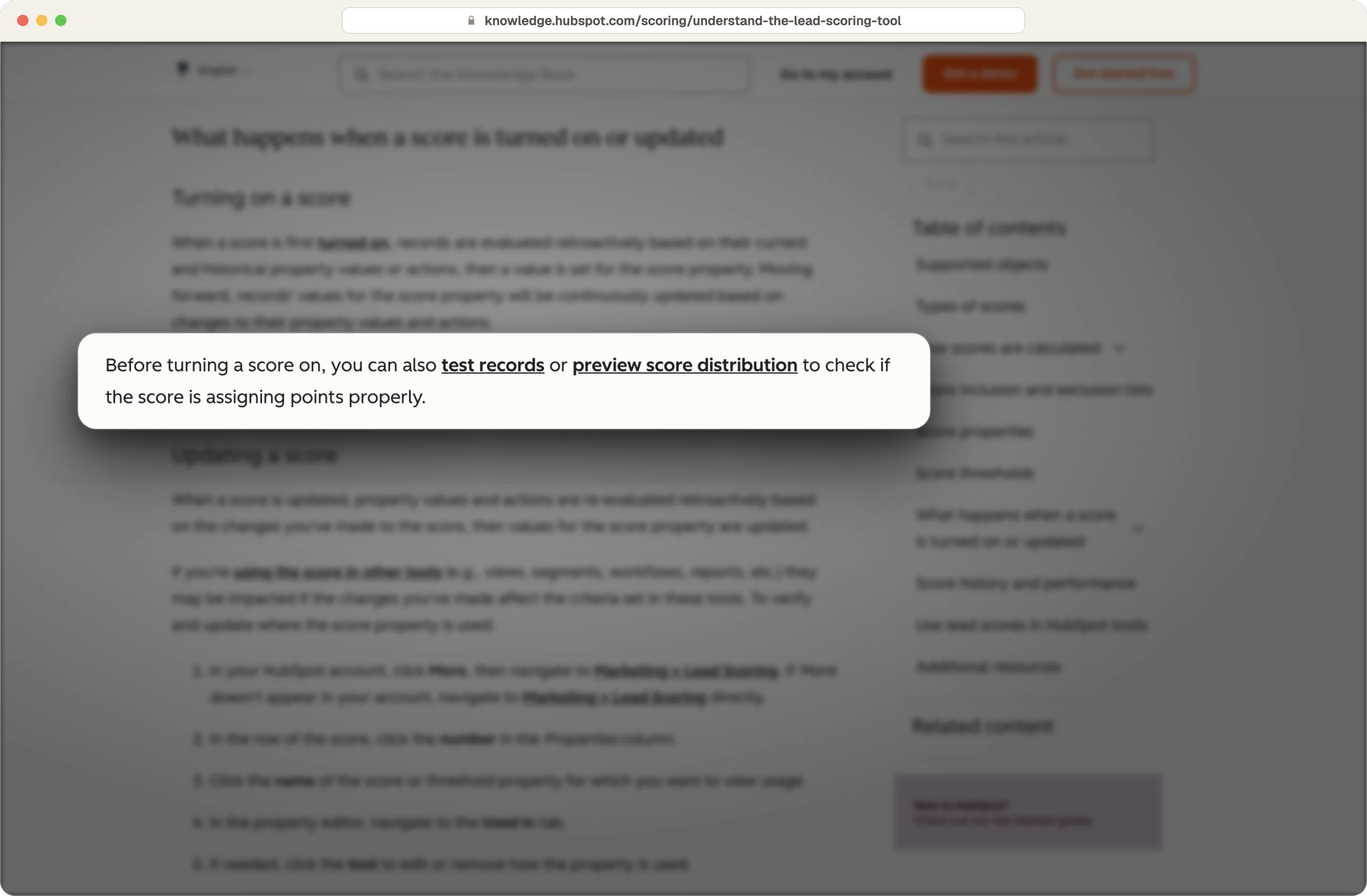
Before you turn the score on, HubSpot lets you test it on single records and preview how scores spread across your database. Show that preview to your sales team and ask whether the A1 leads look like accounts they'd want to call.
Source: HubSpot
Where your full lead scoring model should live, and what stays in HubSpot
HubSpot lead scoring covers what HubSpot can see, which is mostly engagement and the fit properties on your contact records. A full score needs three kinds of signals, and each one comes from a different place.
Engagement signals from your own marketing in HubSpot
Engagement is what people do with the marketing you send from HubSpot, like visiting pages, filling in forms and booking meetings. Your marketing team nurtures leads from HubSpot, so the engagement score belongs there.
Intent signals from your website, LinkedIn and ads
Intent is the interest people show in you on channels HubSpot doesn't fully see. Leadinfo tells you which companies are on your site, and Stairoids picks up engagement with your team's LinkedIn profiles, your company page and your LinkedIn ads, which we cover more in our website visitor workflow examples.
Outside signals from what's happening at the company
Outside signals are things happening at the company itself, like a new sales leader, a funding round or a hiring push. We find these with Clay across the accounts in your market.
Once you bring all three together, the model usually works better outside HubSpot. Sometimes we build it in Clay, which already holds the outside signals and the enrichment, and sometimes in Stairoids, which has its own scoring model in every license.
Wherever it lives, the result goes back to HubSpot as a property on the company and contact. Your reps then see one score with one reason, on the record they already use.
Fit still matters next to all three, and we usually work it out when we map your TAM. If you're only scoring inbound leads from your own marketing, HubSpot lead scoring on its own is a fine place to start.
How score stages decide what each segment of your market gets
A full score also tells you what to do with accounts that aren't ready for a rep yet. We split accounts into stages based on their signals, and each stage gets a different mix of content and channels. Here's an example of how that can look.
Stage | What you know about the account | What it gets |
|---|---|---|
Cold | Good fit, few or no signals | Top-of-funnel content and a fully automated cold email campaign |
Warming | Some intent or engagement | Middle-of-funnel content, with LinkedIn automation added to cold email |
Hot | Strong signals from more than one source | Bottom-of-funnel content like case studies, and direct outreach |
Ready | Asked to talk, or a strong outside signal plus engagement | Handed to a rep today with the reason attached |
The same stages work for your ads. Each stage becomes its own audience, so a cold account sees content that explains the problem, while a hot account sees case studies and a reason to book a call. The further an account moves, the more bottom-of-funnel content it gets, and the closer it gets to becoming an opportunity.
What should happen in HubSpot when a lead crosses your score threshold
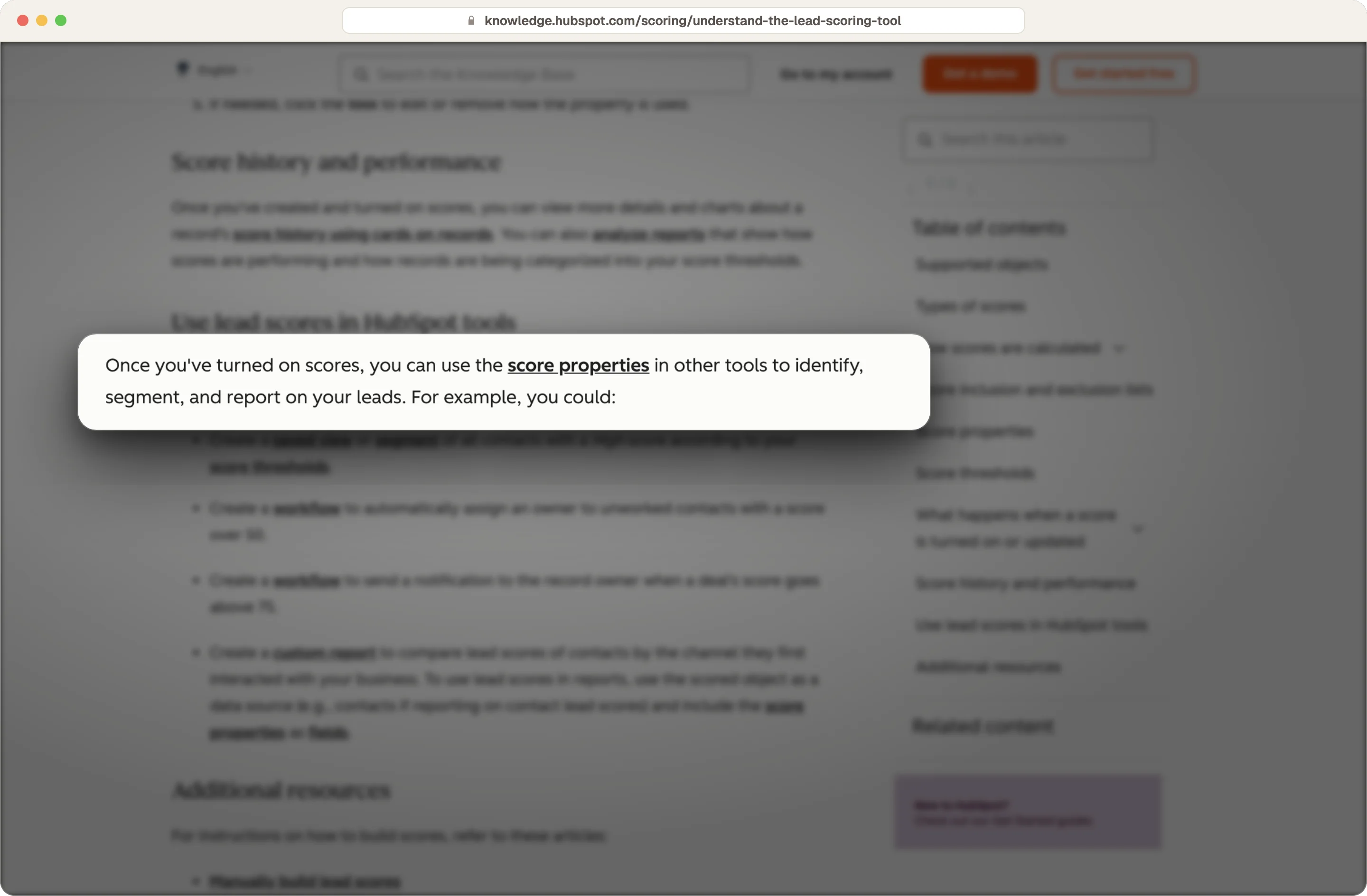
A score only changes your pipeline when something happens at the threshold. HubSpot saves every score and threshold as a property, so you can use them in workflows, segments, saved views and reports.
Source: HubSpot
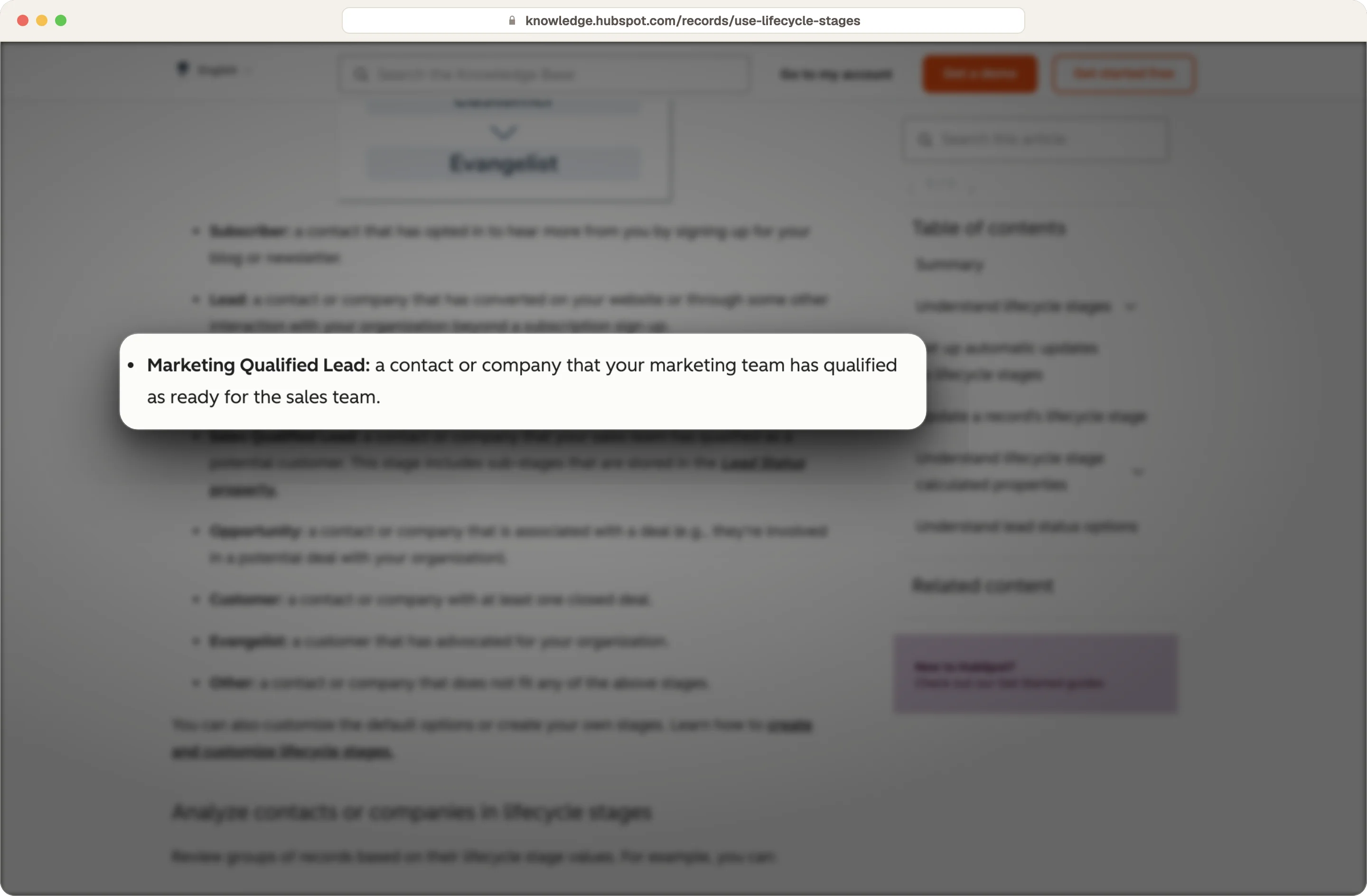
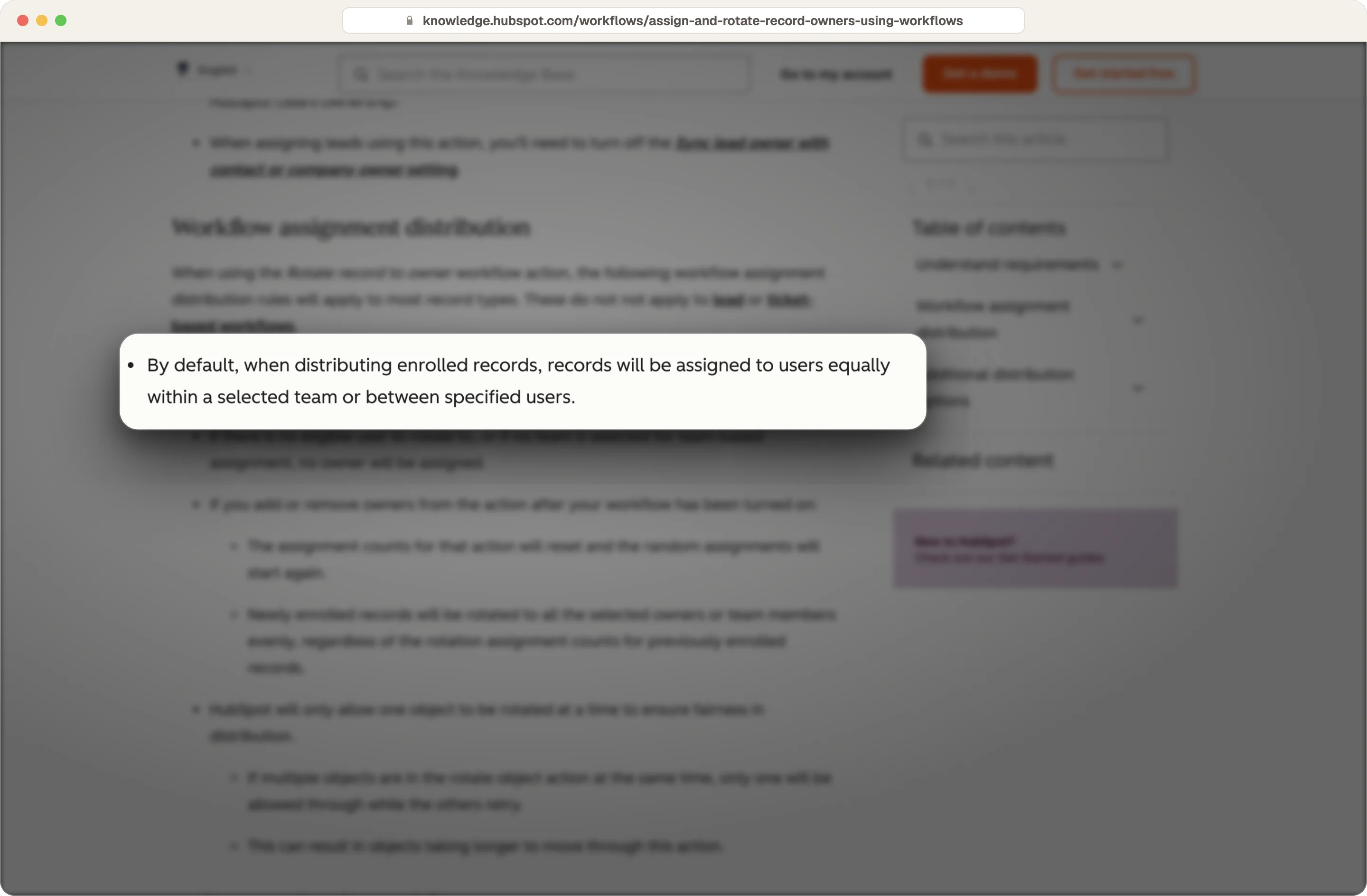
We connect the threshold to one handoff workflow. When a contact reaches the agreed tiers, the workflow sets the lifecycle stage to Marketing Qualified Lead, sets the lead status to New, uses the Rotate record to owner action to assign an owner, and sends the rep the score with the reason behind it.
Source: HubSpot
Source: HubSpot
We go through that workflow step by step in our guide to the marketing to sales handoff in HubSpot.
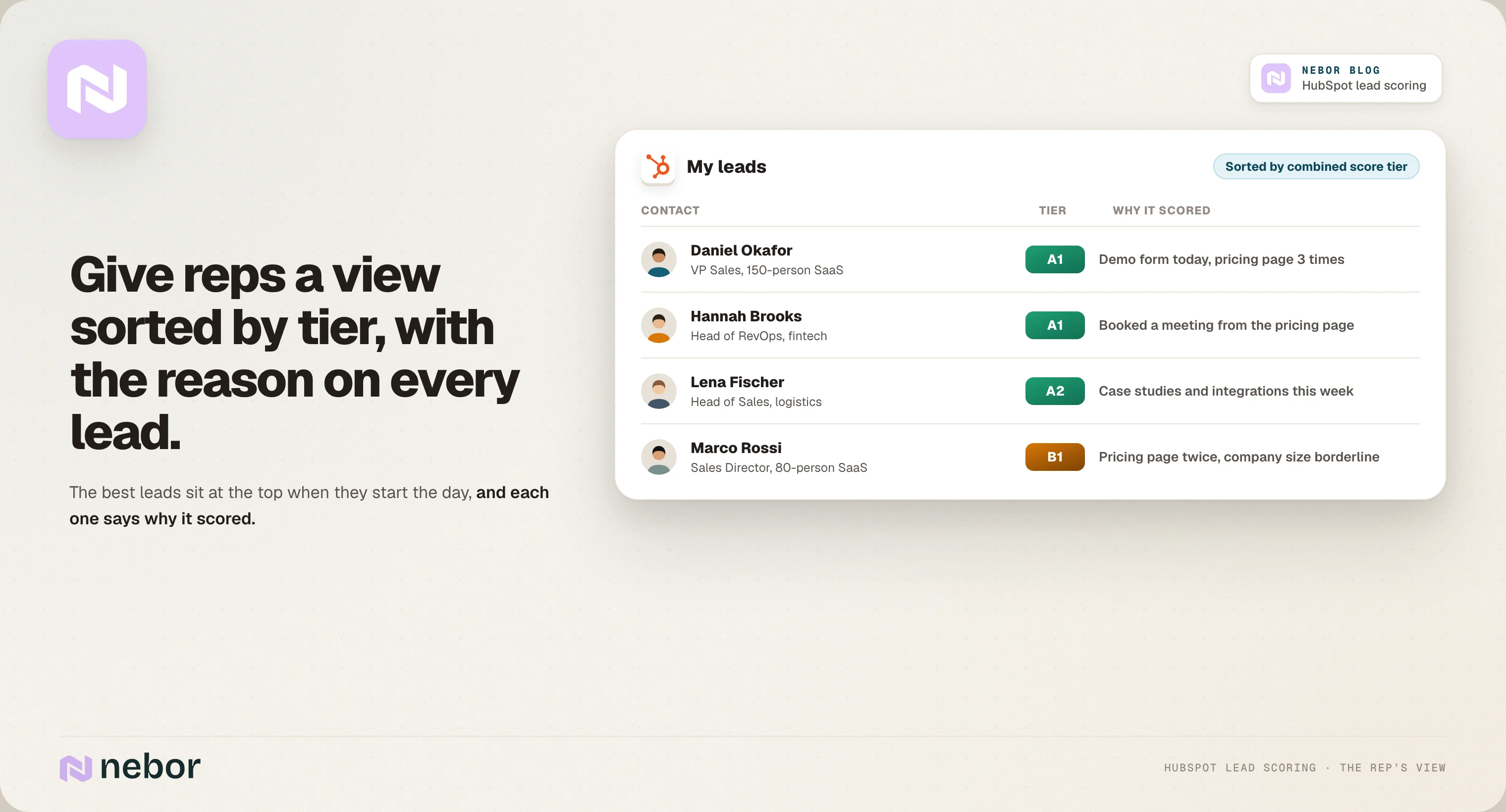
Your reps also need a saved view of their leads, sorted by score tier, so the best ones are at the top when they start the day.
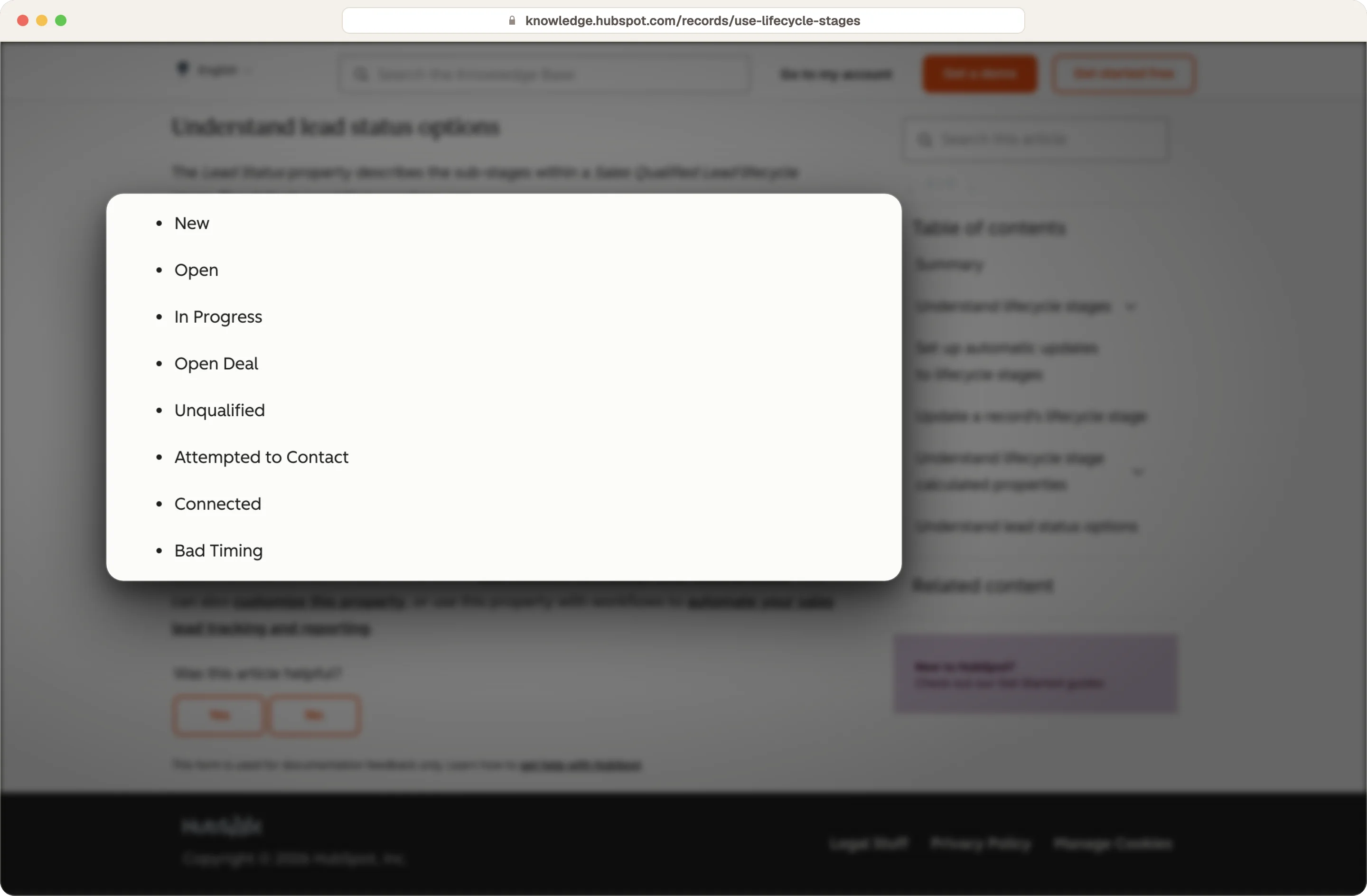
Lead status closes the loop, because it shows what your sales reps did with each lead after it crossed the threshold, like Attempted to Contact, Unqualified or Bad Timing. That lead status history is what you audit when you review the score.
Source: HubSpot
When HubSpot's AI scores and Likelihood to close are worth using
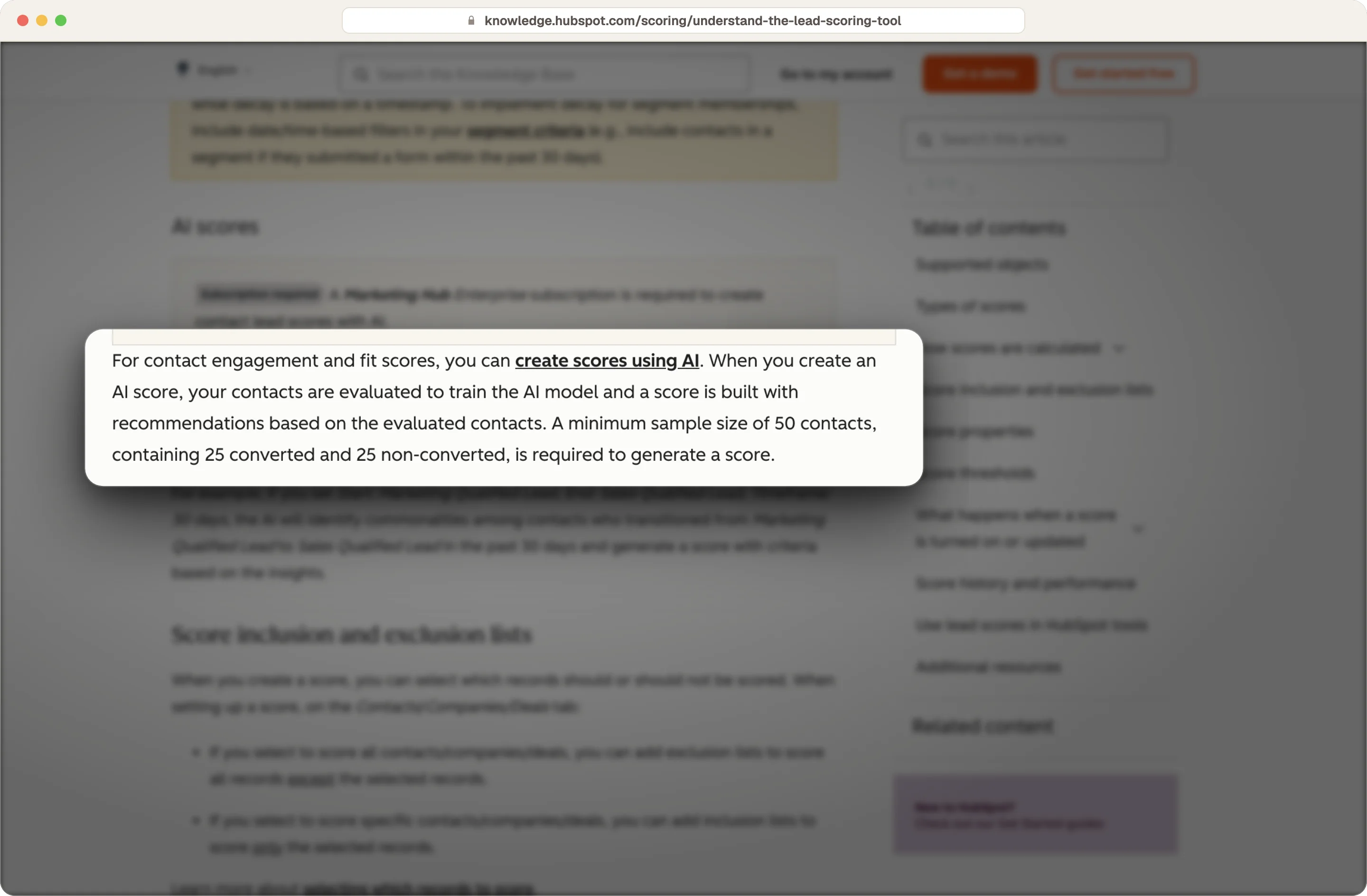
AI scores are part of the lead scoring tool on Marketing Hub Enterprise. HubSpot needs a sample of at least 50 contacts, with 25 that converted and 25 that didn't, and then suggests scoring rules based on the patterns it finds.
Source: HubSpot
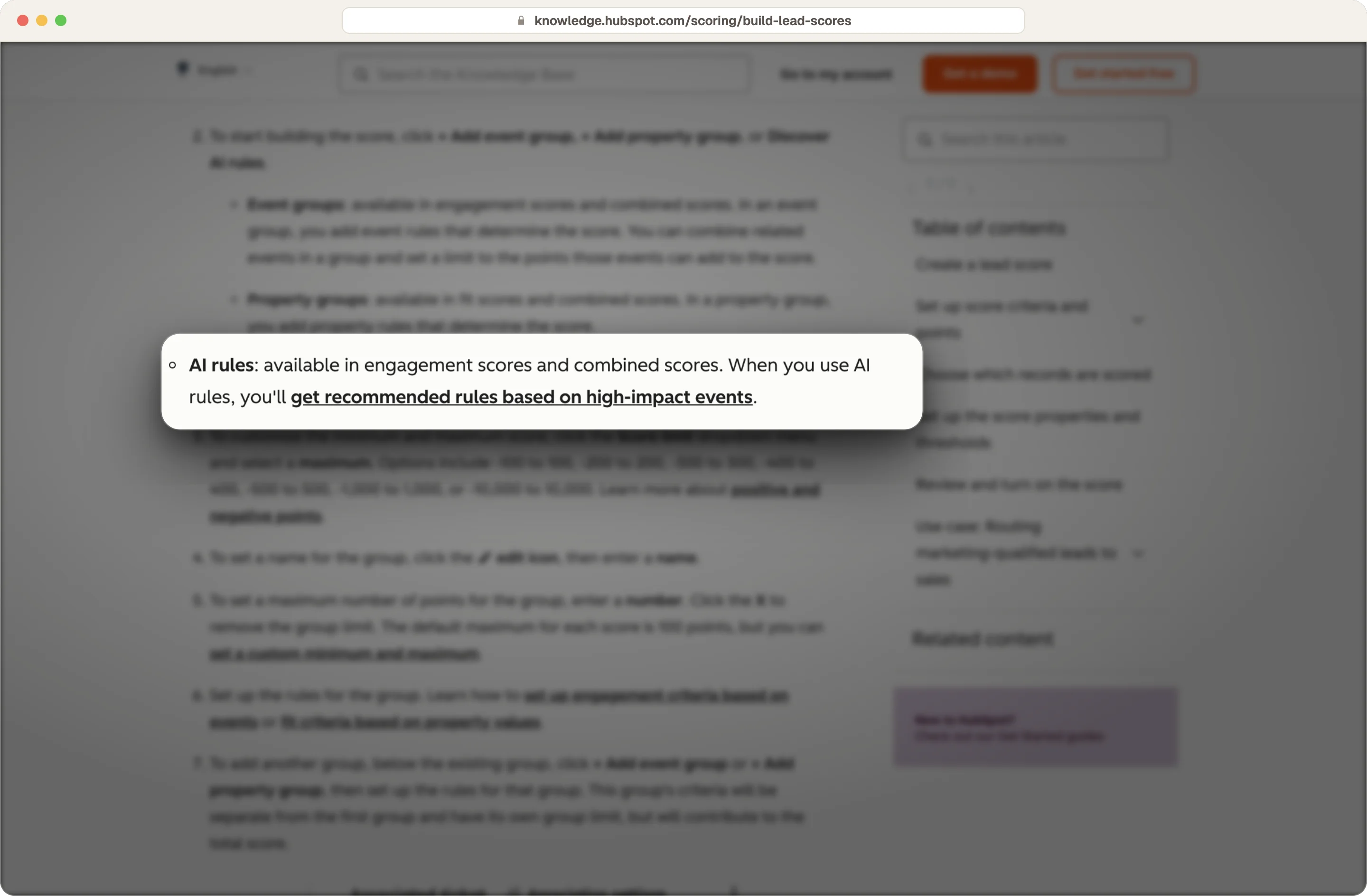
In the score editor, the Discover AI rules option suggests criteria you can add to a rule-based score.
Source: HubSpot
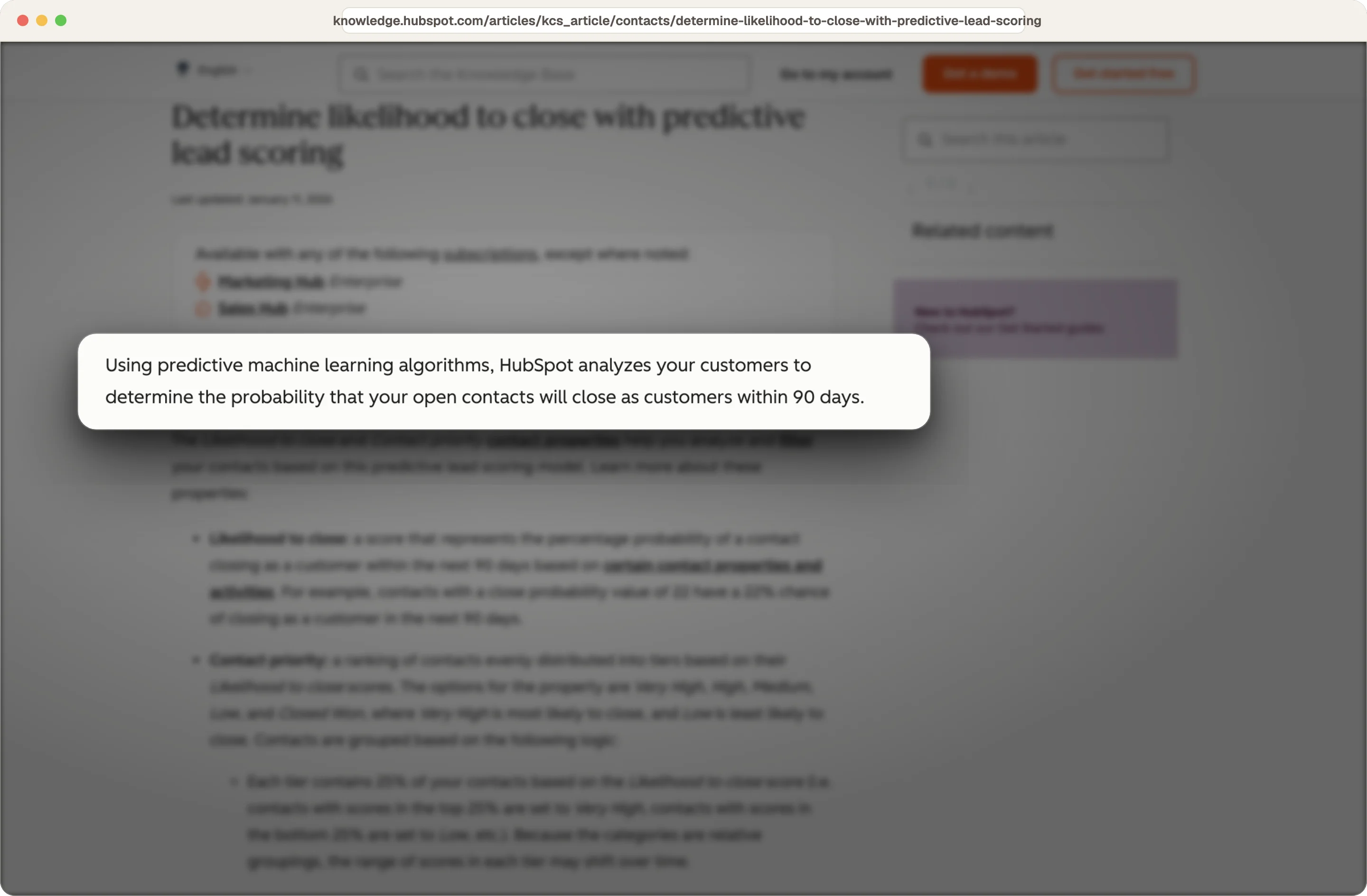
Likelihood to close is HubSpot's predictive lead scoring on Marketing Hub Enterprise and Sales Hub Enterprise. It estimates the chance that an open contact becomes a customer within 90 days.
Source: HubSpot
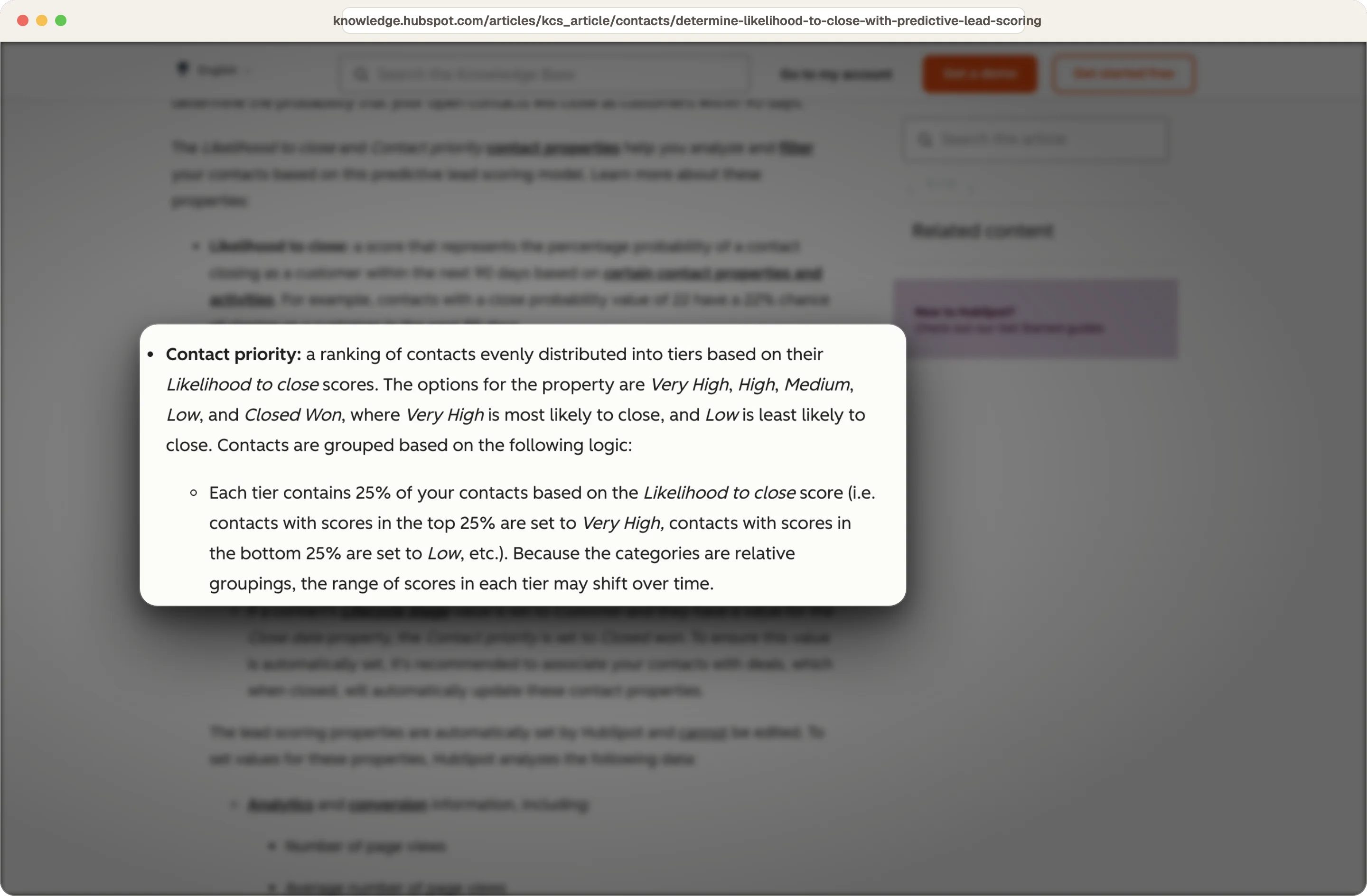
A second property, Contact priority, splits contacts into four equal groups from Very High to Low.
Source: HubSpot
HubSpot describes this model as a black box, so you can't see which factors drive a contact's number. We'd keep a rule-based score as the one your reps see, because a rep trusts a score when they can see why a lead got it, and use the AI features as a second opinion, for example to find criteria you missed.
How to check your lead scoring model against closed deals and keep it accurate
Once the score has been live for a quarter, build a report that compares the score tiers of contacts on deals you won and lost. If your won deals aren't mostly in the A tiers, your fit rules need work, and a senior rep can tell you which high-scoring leads felt wrong and why.
When you change the score, change a few rules at a time and note the date and the reason, so you can see which change helped.
We'd review the score every quarter, and every time your product, pricing or target market changes. Three numbers tell you whether it's working: the share of A-tier leads sales accepts, the conversion rate from MQL to SQL, and the lead status your reps set when they turn a lead down, like Unqualified or Bad Timing.
Hire Nebor to build a HubSpot lead score your sales team will use
Nebor is a GTM and RevOps agency started by salespeople, so we build lead scoring around the question every rep asks when a lead lands, whether to call this person today.
We start from your won and lost deals, build the scores with your sales team, add intent and outside signals where they help, and connect the tiers to your handoff. A1 and A2 leads go to your reps, and A3 accounts feed outbound and your ad audiences.
Everything lives in your HubSpot and your own accounts, with each rule documented so your RevOps owner can change it. Across the systems we build, our clients get more than 20 hours a week back from repetitive work.
When your reps have stopped looking at the score, that's usually the right moment to talk. If you book a meeting and bring a few leads your team scored wrong, we'll show you what we'd change.
HubSpot lead scoring questions that sales and marketing teams bring to us
Can HubSpot lead scoring use data from enrichment or intent platforms?
Yes, as long as that data lands on a HubSpot property. If Clay, Stairoids, or Leadinfo writes company size, a signal or an outside score to a contact or company property, you can use it in a rule like any other property.
How do you get your sales team to trust the lead score?
Build it with them, starting from their won deals, and show them the preview before you turn it on. After launch, use the reasons they give when they turn a lead down to change the rules, and tell them what you changed. Reps trust a score once they've seen it get better because of their feedback.
What's a good lead score threshold in HubSpot?
There's no universal number, because it depends on your points and your market. With a combined score, we'd start by sending A1 and A2 leads to sales, then widen or narrow that based on how many of them your reps accept.


Related Articles

By clicking Sign Up you're confirming that you agree with our Terms and Conditions.