
CRM Migration: How to Move Your Data and Keep Your Pipeline Working in 2026

by

In this post:
The biggest mistake we see in a CRM data migration is the lift and shift. The team takes everything in the old CRM, every property, pipeline, and picklist, and recreates it field for field in the new one. That throws away the one moment you get to start with a clean sheet.
And most old CRMs need that clean sheet. Without a RevOps team, nobody governs the data model, so people create a property for every new idea. You end up with hundreds of fields that nobody fills in or that only one person uses, and the same thing tracked three different ways.
Region is the example we see most often. It often lives on the contact, the company, and the deal, and if those three properties don't share the same values and aren't kept in sync, half your records end up with a blank region, and the other half disagree with each other.
So before we move a single record, we design the data model in the new CRM and decide which properties earn a place in it and how they connect across objects. Then we clean the data, map every field and association, test the move with your reps, and rebuild the automations instead of copying them.
The older your company, the more history you carry and the more complex that gets. If you lead sales, marketing, or RevOps at a B2B or SaaS company and you're moving to a new CRM, this plan is written for you.
We set up and clean CRMs for B2B teams, and a data migration is often where that work starts.
We're a GTM and RevOps agency, so the test we care about is whether your reps can sell from the new CRM the day after the switch. If you'd like help planning yours, you can book a meeting with us.
TL;DR
Don't lift and shift your old CRM into the new one. Design the data model in the new CRM first, and only bring over the properties, pipelines and picklist values you still need.
Keep shared properties like region identical across contacts, companies and deals, or you'll end up with blanks and mismatches.
In a data migration, contacts, companies, deals and most activities move well. Workflows, reports, lead scoring and permissions have to be rebuilt in the new CRM.
Clean your data and back it up before you export it, because every duplicate and empty field you move becomes a problem in the new system.
Match the method to the job. HubSpot imports up to 1,048,576 rows per file, Smart Transfer pulls from Salesforce, Pipedrive, Zoho and others, and Salesforce's Data Loader handles up to 5 million records.
Test on real records with your reps, freeze the old CRM during cutover, and keep it read-only for a short time before you archive it.
Nebor plans and handles CRM migrations to HubSpot or Salesforce in your own accounts as part of our RevOps work, then hands over a runbook so your team can change the setup. You can book a meeting to scope yours.
What a CRM data migration involves, and why moving the data is the smallest part of it
A CRM data migration is the move of your customer data, sales process and automations from one CRM to another. It has five parts, and only the first one moves with an import tool.
The data: Contacts, companies, deals, activities, and the data relationships between them.
The data model: Your objects, properties, pipelines, deal stages, lifecycle stages and picklist values.
The automations: Workflows, sequences, lead routing, lead scoring and notifications.
The reporting: Dashboards, forecasts and the reports leadership reads every week.
The integrations: Your email tool, website forms, billing system, marketing automation tools and anything else that writes to the CRM.
In our experience, most data migration projects go over because teams plan the first part carefully and leave the other four for later. That's backwards, because parts two to five are what your reps, managers, and support teams notice the moment they log in.
Why you shouldn't lift and shift your old CRM into the new one
A lift and shift means taking whatever you had and dumping it into the new CRM system with exactly the same fields, pipelines and values. It feels safe, because nothing gets left behind, but you carry every old problem into a system that was supposed to fix them.
Those problems come from how CRMs grow. Companies without a dedicated RevOps team rarely have any data governance, so a property gets created whenever someone needs to track something, and after a few years you have fields nobody fills in, fields made for one campaign, and several fields that track the same thing.
The bigger issue is consistency across objects. When region is set on the contact, the company, and the deal with different picklist values, or nothing keeps them in sync, every report and routing rule that depends on region gives you a different answer.
A data migration is the cheapest moment to fix that, because you're touching every record anyway, so we design the data model properly first and only then move the data into it.
What moves cleanly between CRM systems and what you'll have to rebuild
Here's how each part of a typical CRM behaves in a CRM data migration, and what we'd do with it.
What you have | Does it move? | What we'd do |
|---|---|---|
Contacts and companies | Yes | Clean and remove duplicate records before the export |
Deals and pipeline stages | Yes, once stages are mapped | Map every old stage to a new one |
Notes, calls, meetings and tasks | Usually, with the right tool | Move recent history and archive the rest |
Emails and attachments | Depends on the tool | Check before you promise reps their history |
Custom fields | Yes, once mapped | Retire the ones nobody fills in |
Workflows and automations | No | Rebuild them from a written process |
Reports and dashboards | No | Rebuild them around the questions leadership asks |
Lead scoring | No | Rebuild it in the new CRM's scoring tool |
Teams, permissions and record types | No | Set them up fresh for how your team works now |
Integrations and forms | No | Reconnect and retest each one |
The rows marked No are where most of the effort goes. Every one of them has to be rebuilt by someone who understands your business processes, and that's the part a migration tool can't do for you.
How to plan a CRM migration in eight steps that build on each other
A clear migration strategy reduces risk and protects data integrity throughout the migration process, because each step catches problems before they reach the next one. Data integrity matters beyond the move itself, because the revenue numbers and decisions your leadership relies on come straight from this data. These steps follow the order we use, and skipping ahead usually means doing a step twice.
Step 1: Audit your existing CRM and decide what's worth moving
Every data migration should start with an inventory of your existing CRM. Count your records by object, check how many records have a value in each property, and find out which workflows still trigger and which reports anyone opens. Most legacy systems carry far more properties and automations than the team uses, and every unused one you move adds mapping work for nothing.
Then sort your legacy data into three groups with your sales and marketing leads.
Move now: Essential data like open deals, current customers, active leads and their recent activity.
Move with limited history: Closed deals and older leads, up to a cutoff date your team agrees on.
Archive: Outdated records and non-essential data nobody has touched, exported to a file you keep outside the new CRM, which also keeps storage costs down in the new system.
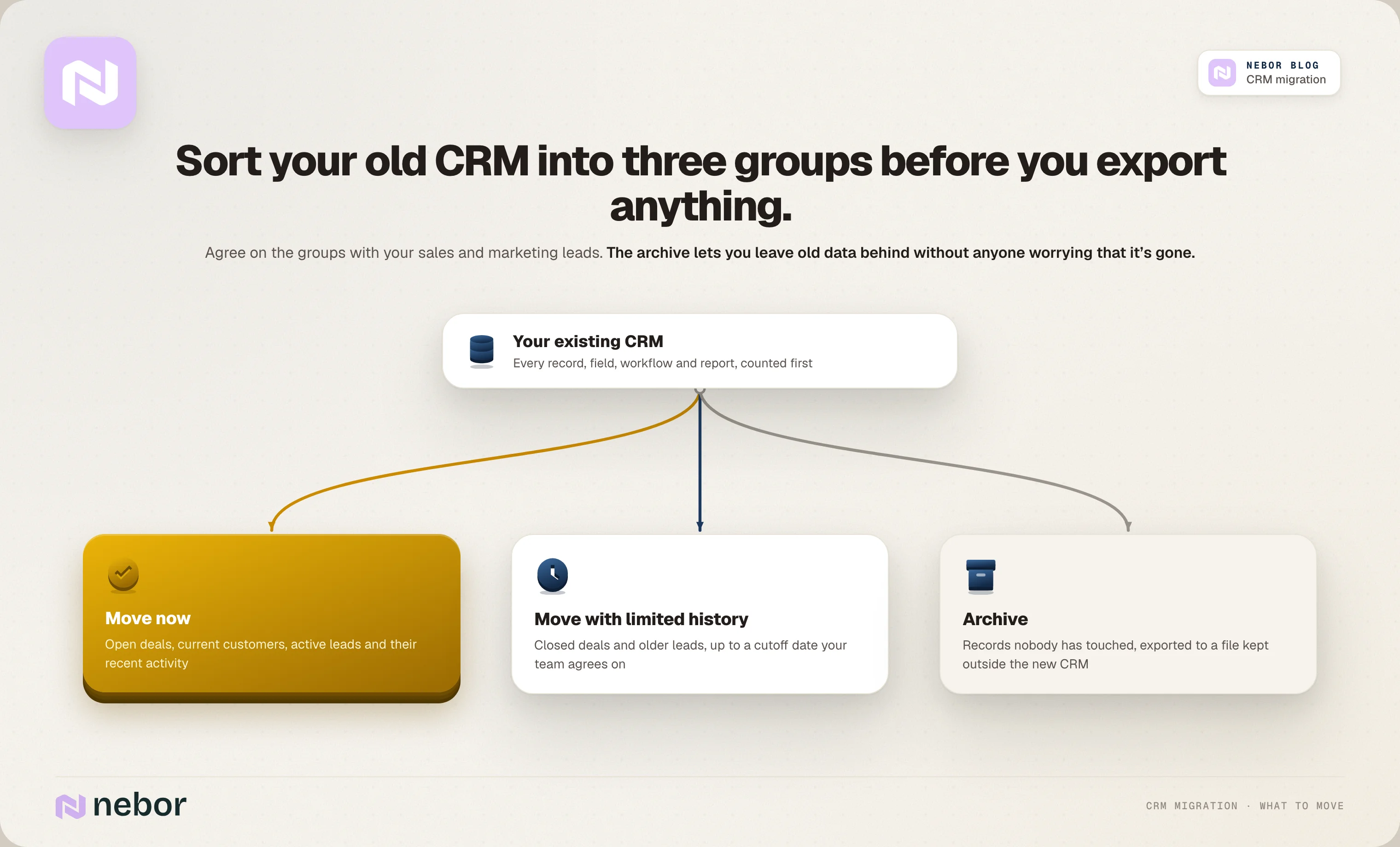
The archive lets you say no to moving old historical data without anyone worrying that it's gone.
Step 2: Design the data model in the new CRM before you map anything
Before any data migration starts, decide what the new CRM should look like. That means which objects you'll use, which properties each object needs, how objects associate with each other, and which pipelines and stages match how you sell today.
We write that down in a data dictionary, a simple table with each property's name, type, allowed values, the object it lives on and who owns it. It also sets a naming convention and makes one person responsible for approving new properties, so the new CRM doesn't grow the same sprawl as the old one.
For properties that appear on more than one object, like region, decide which object is the source and how the others stay in sync. In HubSpot, a workflow with the Copy property value action can push the company's region to its associated contacts and deals. In Salesforce, a cross-object formula field on the contact or opportunity can read the region straight from the parent account. Either way, the picklist values stay identical everywhere, and nobody has to fill in the same thing three times.
Step 3: Clean your CRM data and back it up before it moves
According to Gartner, poor data quality costs organizations an average of $12.9 million a year. A CRM data migration is the cheapest moment for data cleansing, because you're already touching every record, and dirty data moved into a new system is harder to clean later.
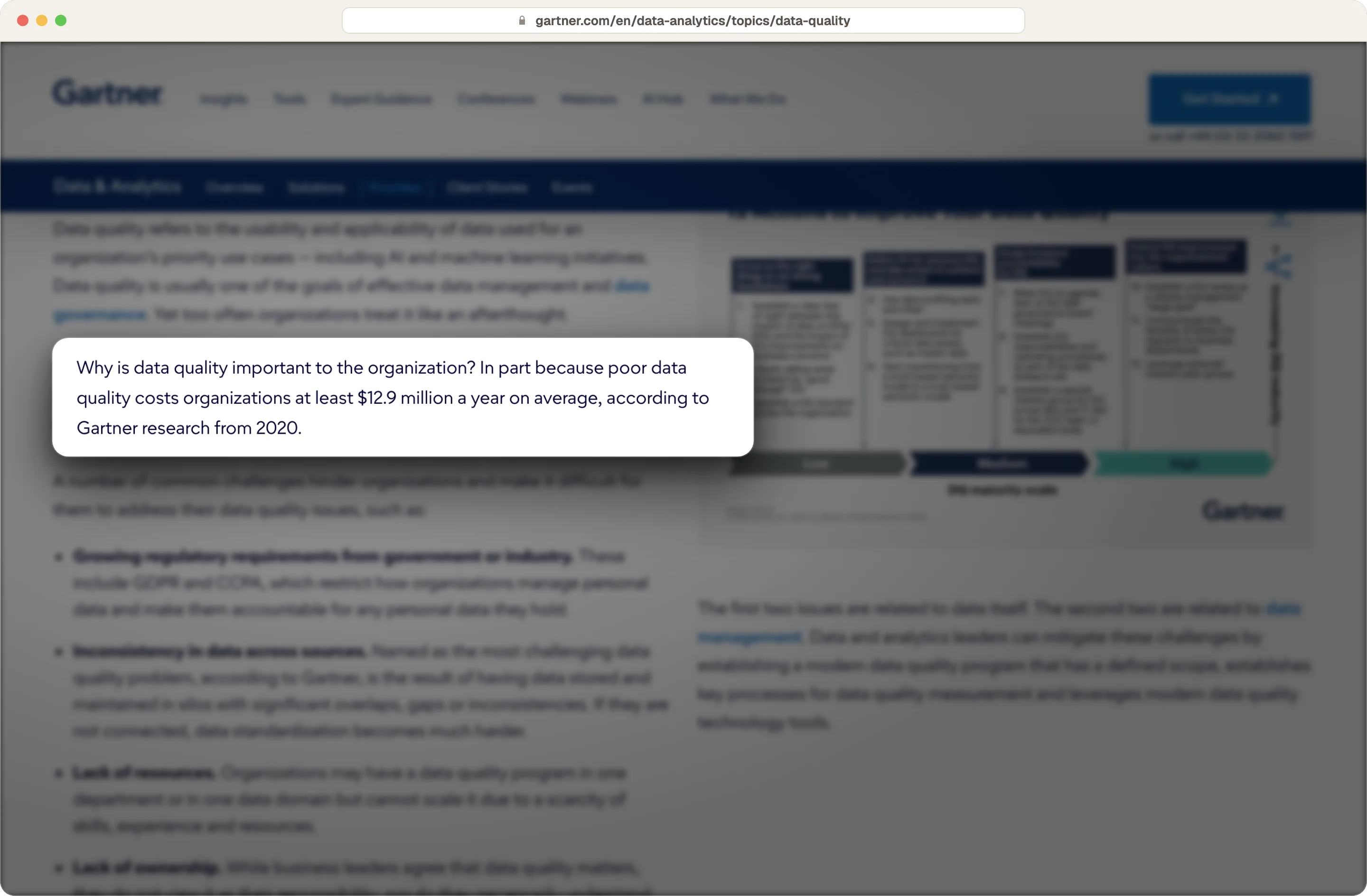
Source: Gartner
So you need to clean the data in the old CRM, or in your export file, before anything moves.
Merge duplicate contacts by email address and duplicate companies by domain.
Standardize the values you'll filter on, like country, industry and job title, to the picklist values in your new data dictionary.
Reassign records owned by people who left, and close deals that have been dead for months.
Fill the gaps in the fields your team relies on most, with enrichment where you need it.
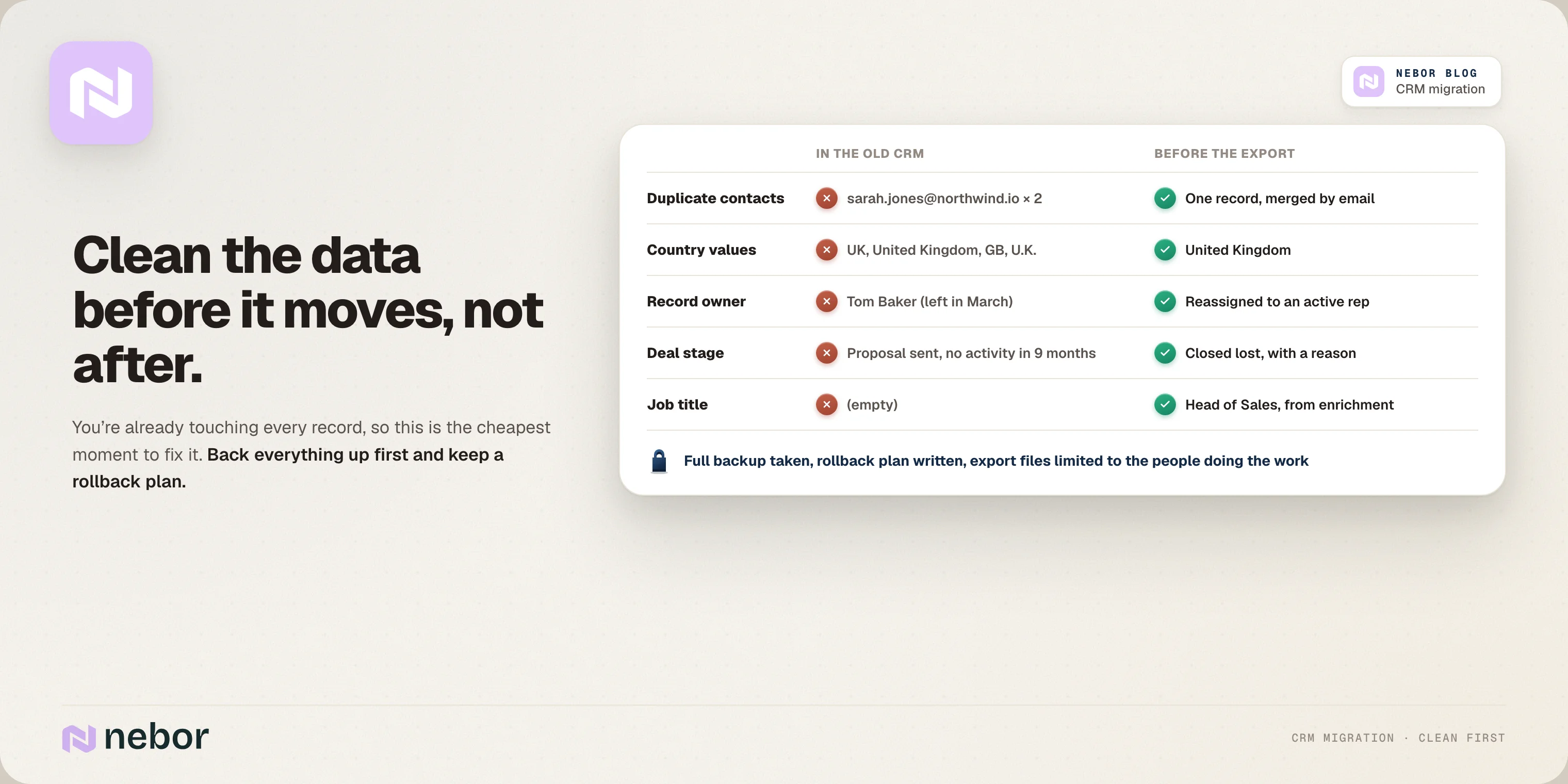
We go through that cleanup step by step in our guide to cleaning CRM data before a migration, and we cover enrichment in our list of CRM enrichment and data hygiene agencies.
Before the move, you also need a full backup of the old CRM and a rollback plan, so you can restore anything that goes wrong during the transfer. Treat the export files as sensitive customer data. Use access controls to limit who can open them, and delete working copies once the data migration is signed off.
Step 4: Build a data mapping document for every field, stage and association
A data mapping document says where every piece of old data goes. For each field, you write the old name, the new property it goes to, and any transformation on the way, like splitting a full name into first and last name or turning free text into a dropdown.
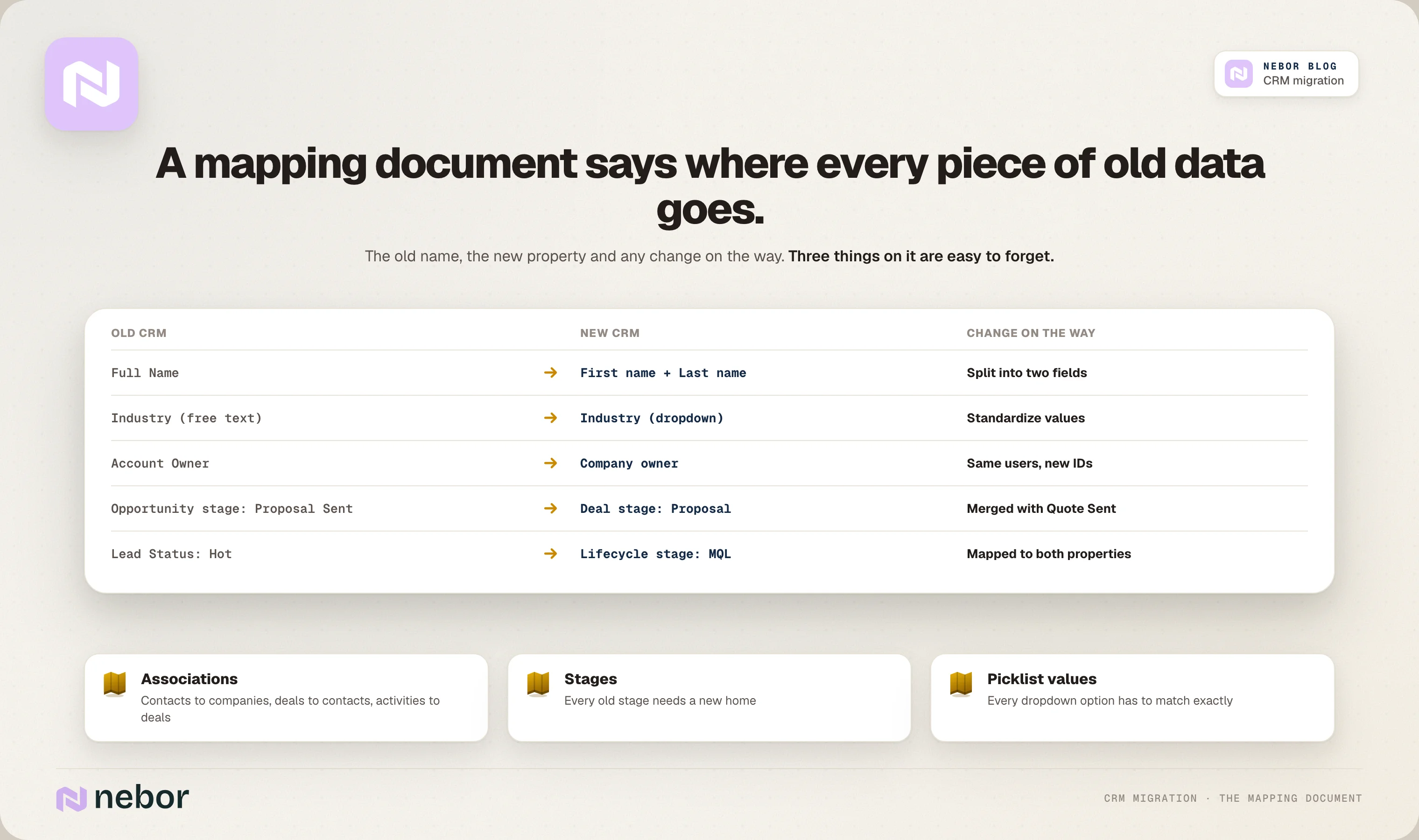
You also need to map three things that are easy to forget.
Associations: Which contacts belong to which companies, which deals involve which contacts, and which activities belong to which deals. If these break, your timelines, reports and view of customer relationships break with them. Keep the old record IDs as an external ID property on every object, so you can rebuild these links during import and trace any record back to the old system.
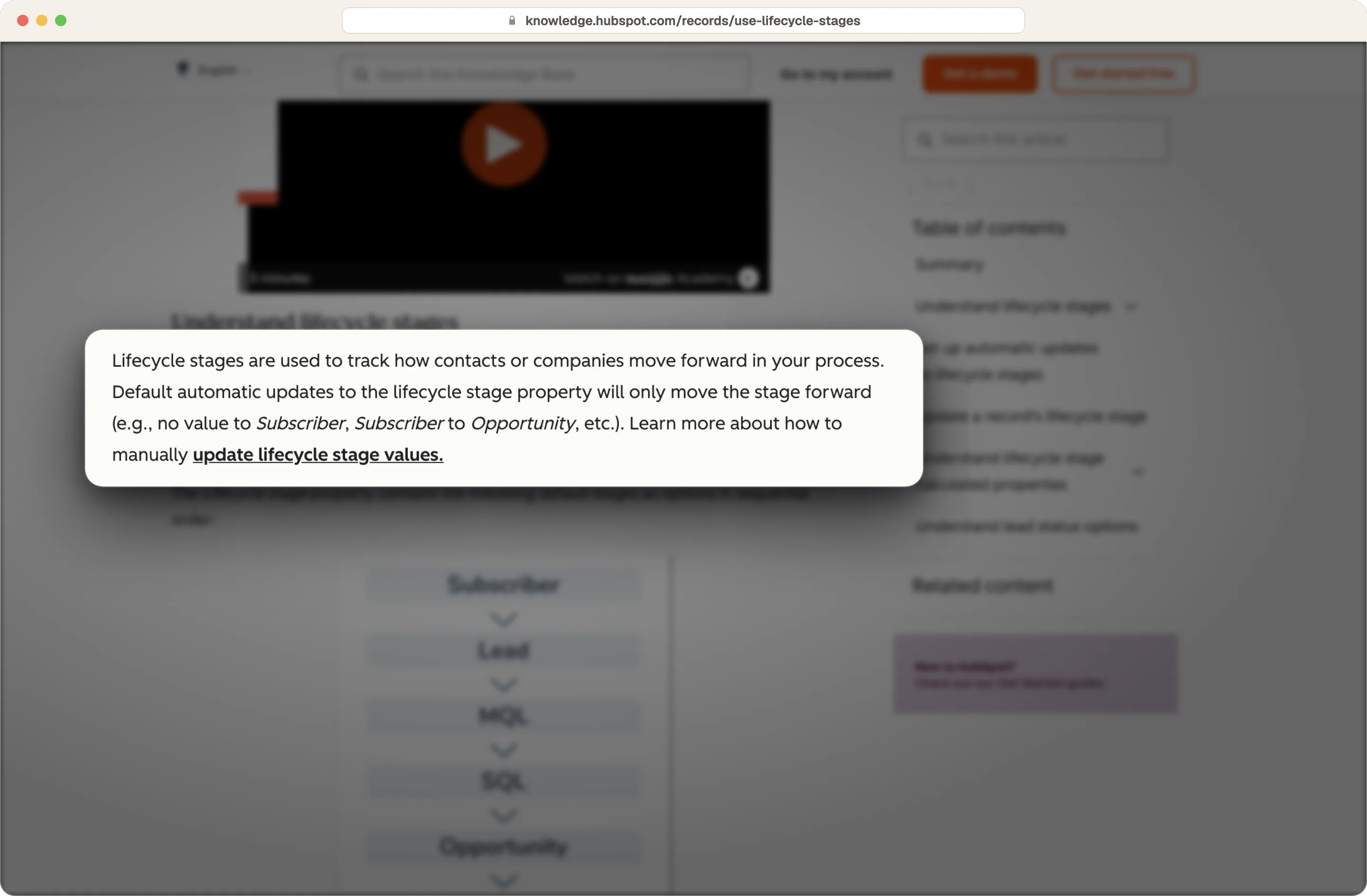
Pipeline and lifecycle stages: Every old stage needs a new home, and some old stages should merge. In HubSpot, contacts carry lifecycle stages as well as deal stages, so you need to decide how your old statuses map to both.
Picklist values: Every dropdown option in the old CRM has to match an option in the new one exactly, or the import leaves those fields empty.
Source: HubSpot
Step 5: Pick the right migration method for your data and your CRM
The right data migration method depends on where you're moving from, your data volume and how complex the data is.
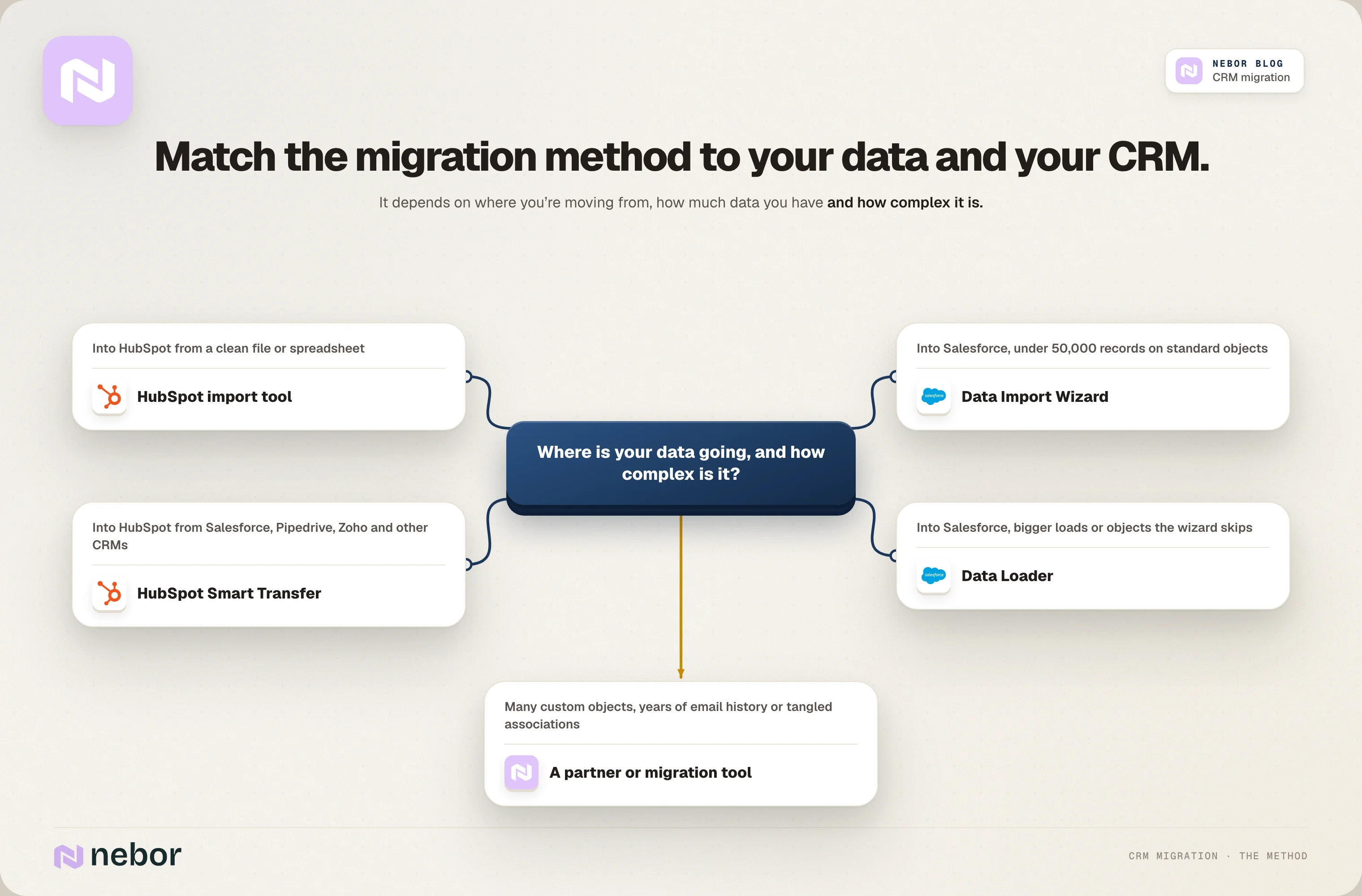
HubSpot's import tool for clean, simple data
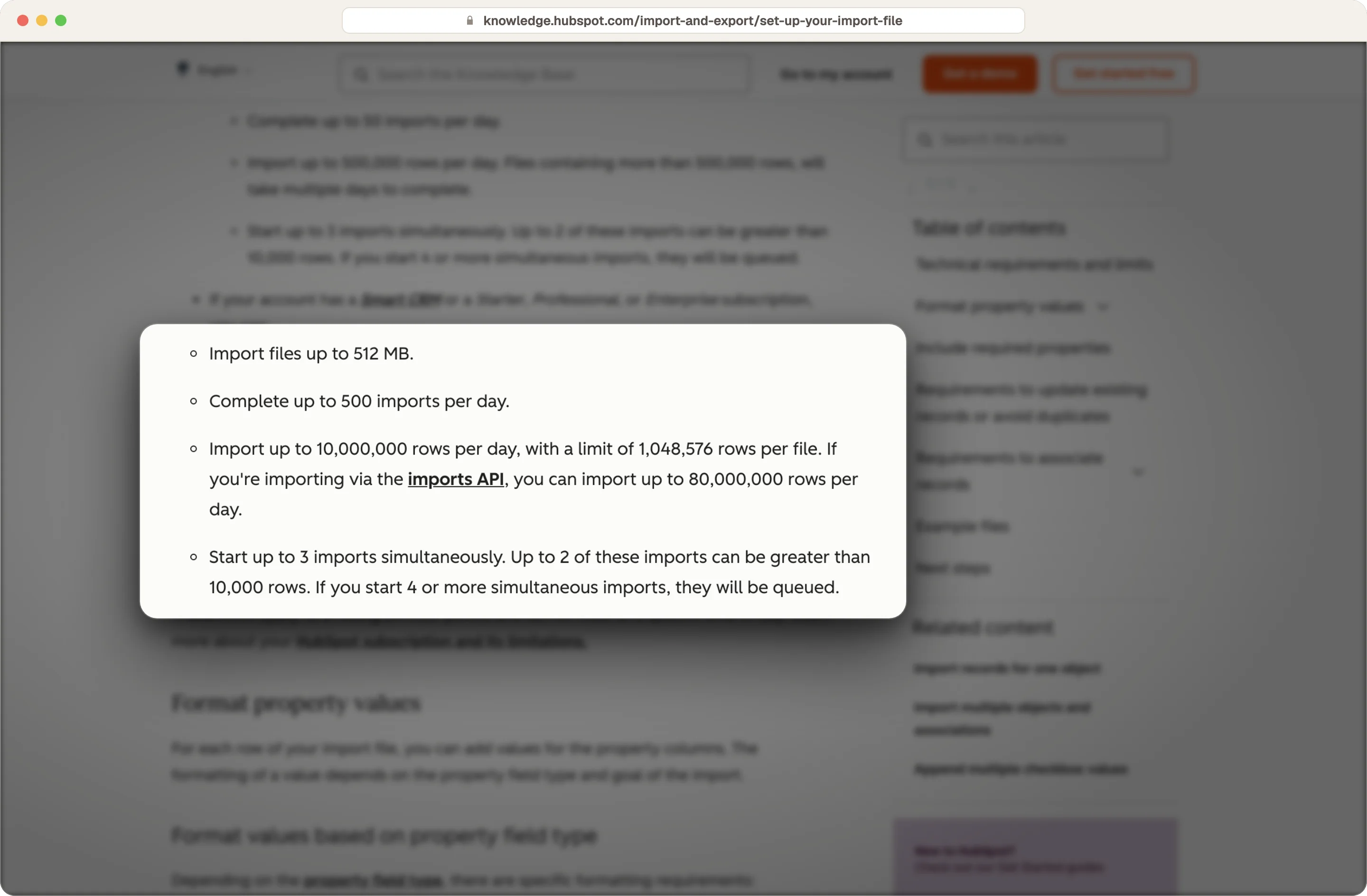
HubSpot's import tool takes files of up to 512MB and 1,048,576 rows on paid plans, with up to 10,000,000 rows a day, and each file needs fewer than 1,000 columns. Imports work well for clean, simple data, but you have to rebuild associations by importing objects in the right order, matched on a unique identifier.
Source: HubSpot
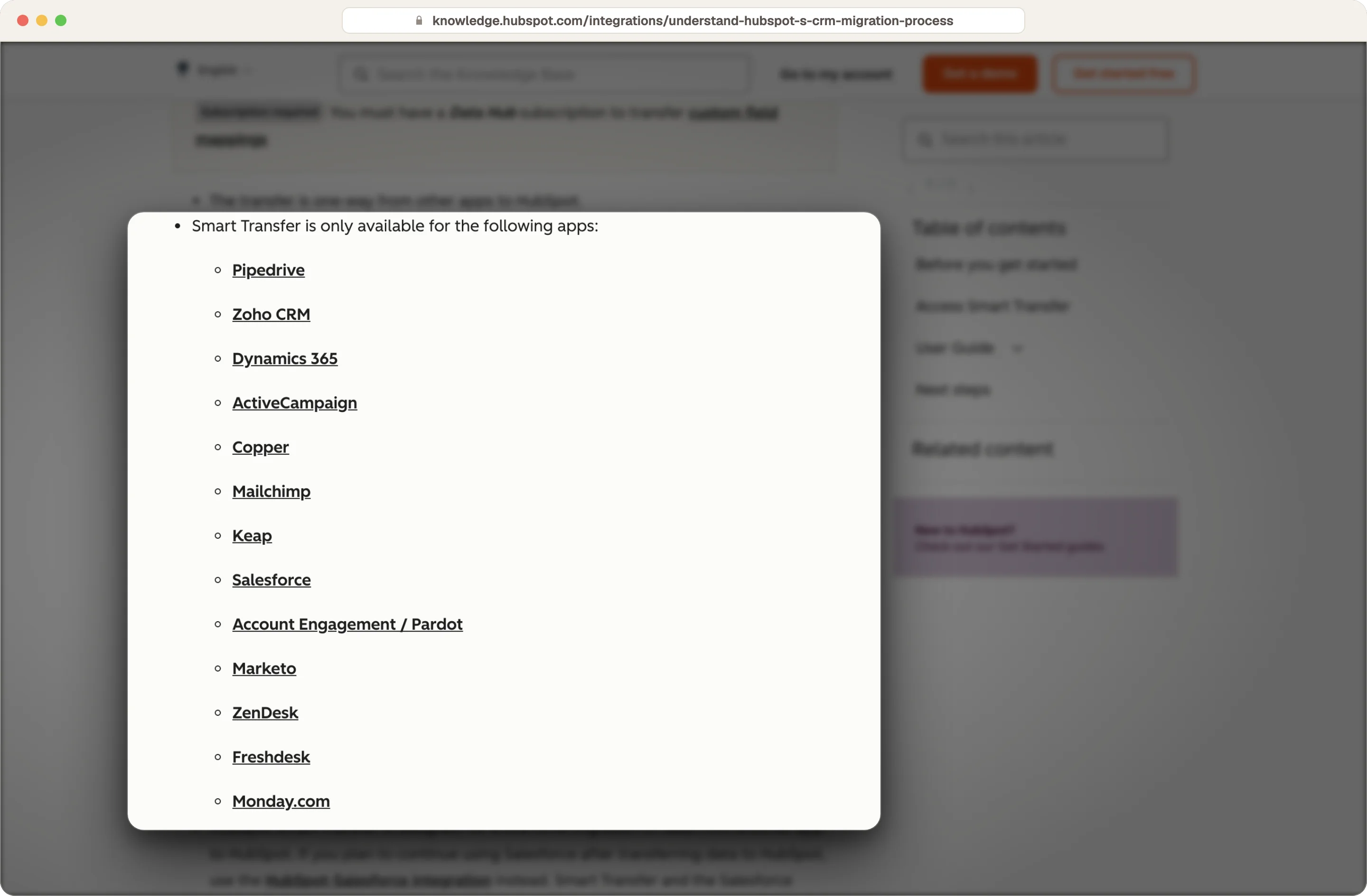
HubSpot Smart Transfer for moves from another CRM
HubSpot's Smart Transfer moves data from Salesforce, Pipedrive, Zoho CRM, Dynamics 365, ActiveCampaign, Copper, Keap, Mailchimp, Marketo, Zendesk, Freshdesk, Monday and Account Engagement.
Source: HubSpot
Smart Transfer moves contacts, companies, deals with their pipeline stages, properties, calls, meetings, notes, tasks, users and currencies. Custom field mappings need a Data Hub subscription, you need Super Admin permissions, and one-time transfers don't stay in sync afterwards.
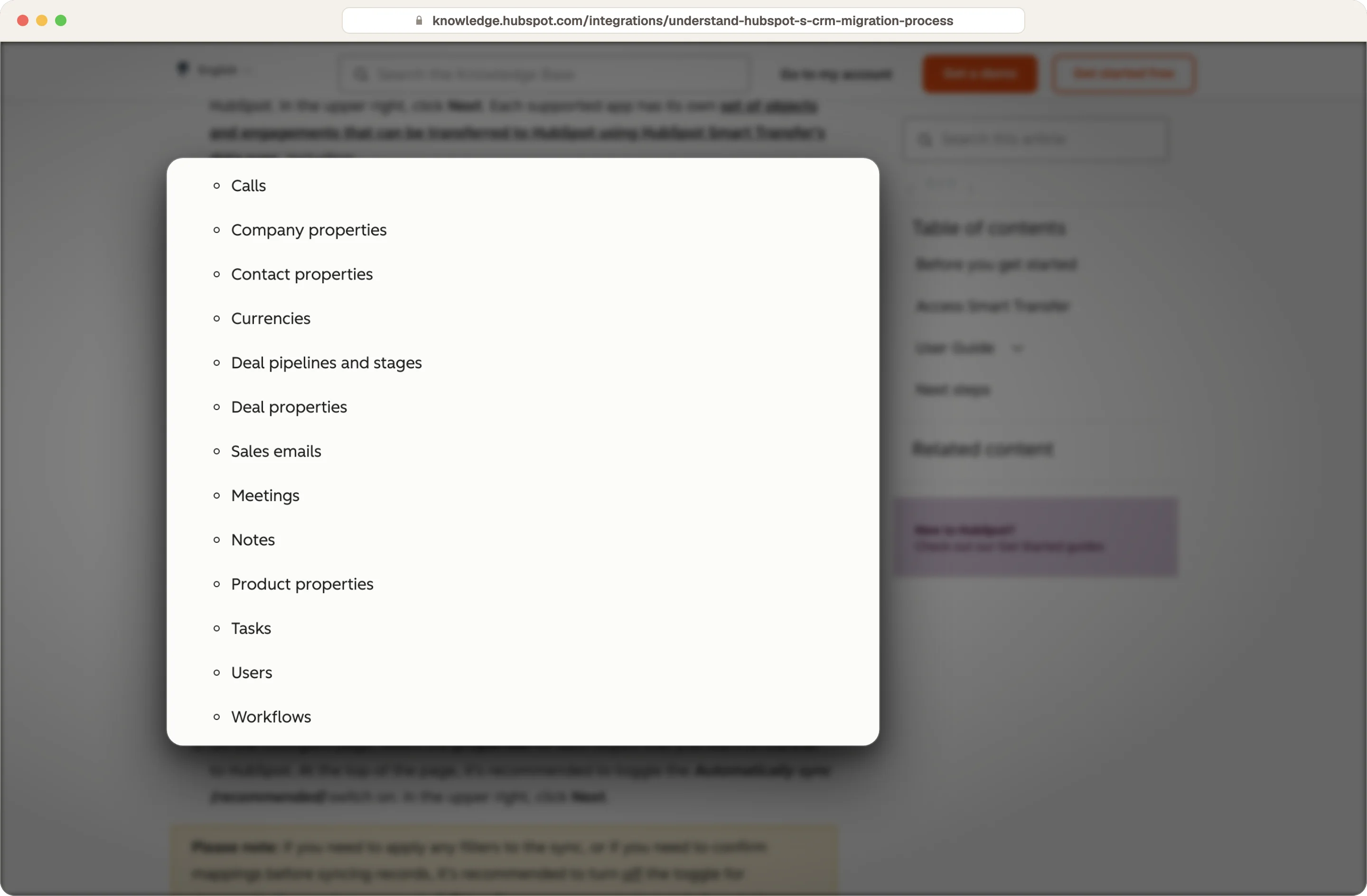
Source: HubSpot
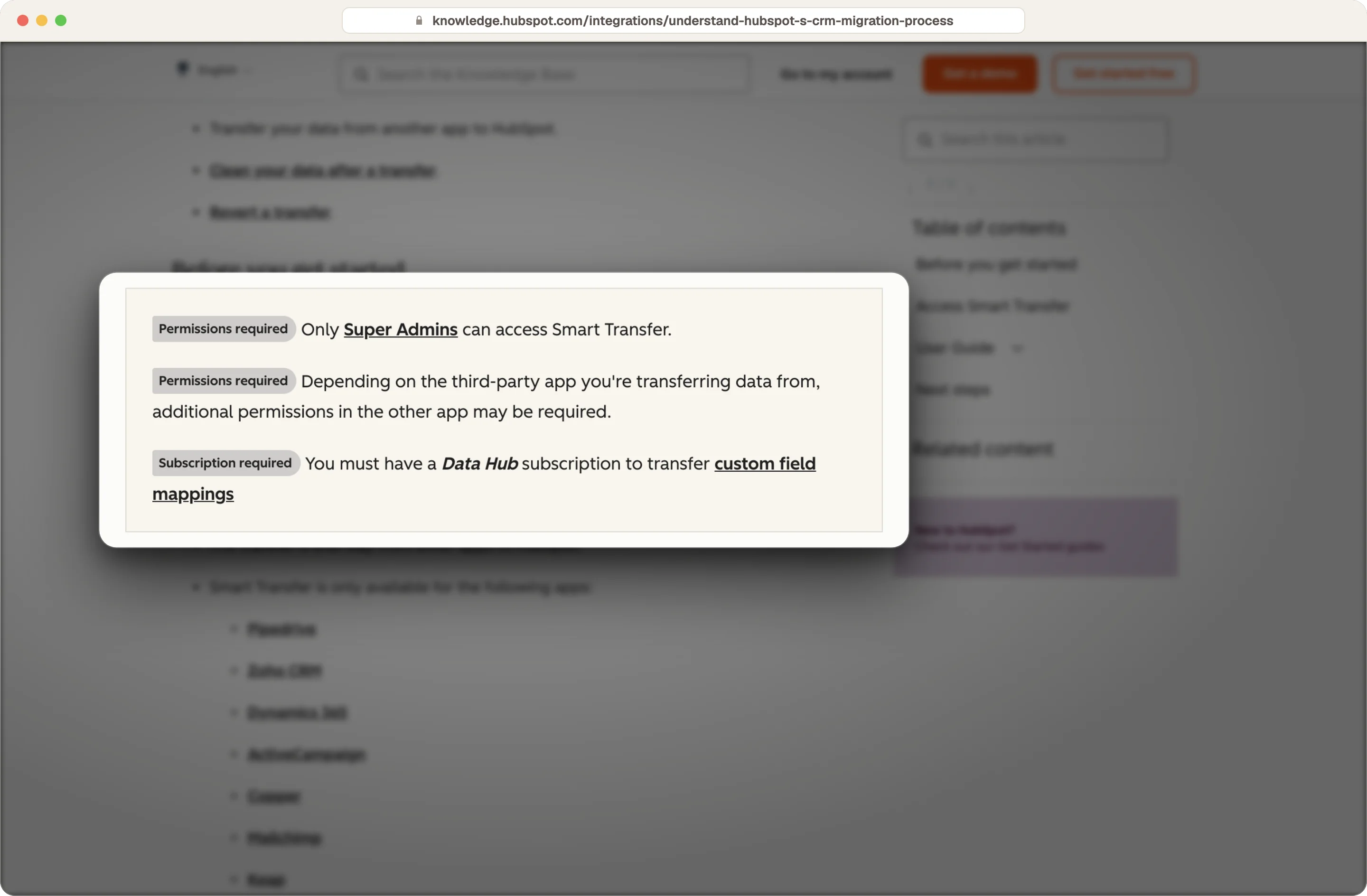
Source: HubSpot
Salesforce's Data Import Wizard and Data Loader
Salesforce recommends its Data Import Wizard for loads under 50,000 records on standard objects like accounts, contacts and leads. Data Loader handles loads of up to 5 million records and objects the wizard doesn't support, and its upsert operation, matched on an external ID, lets you repeat the same load without creating duplicates.
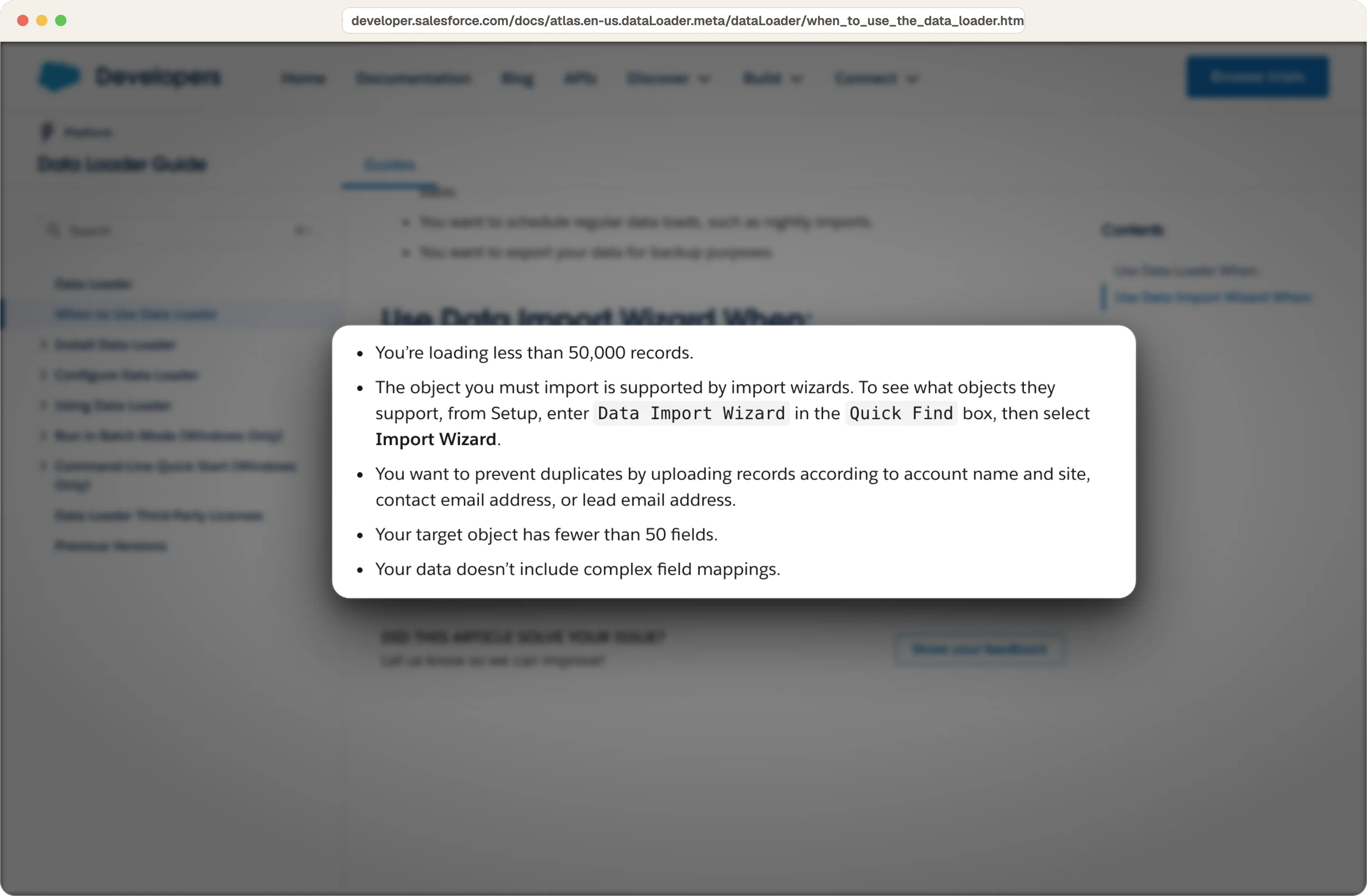
Source: Salesforce
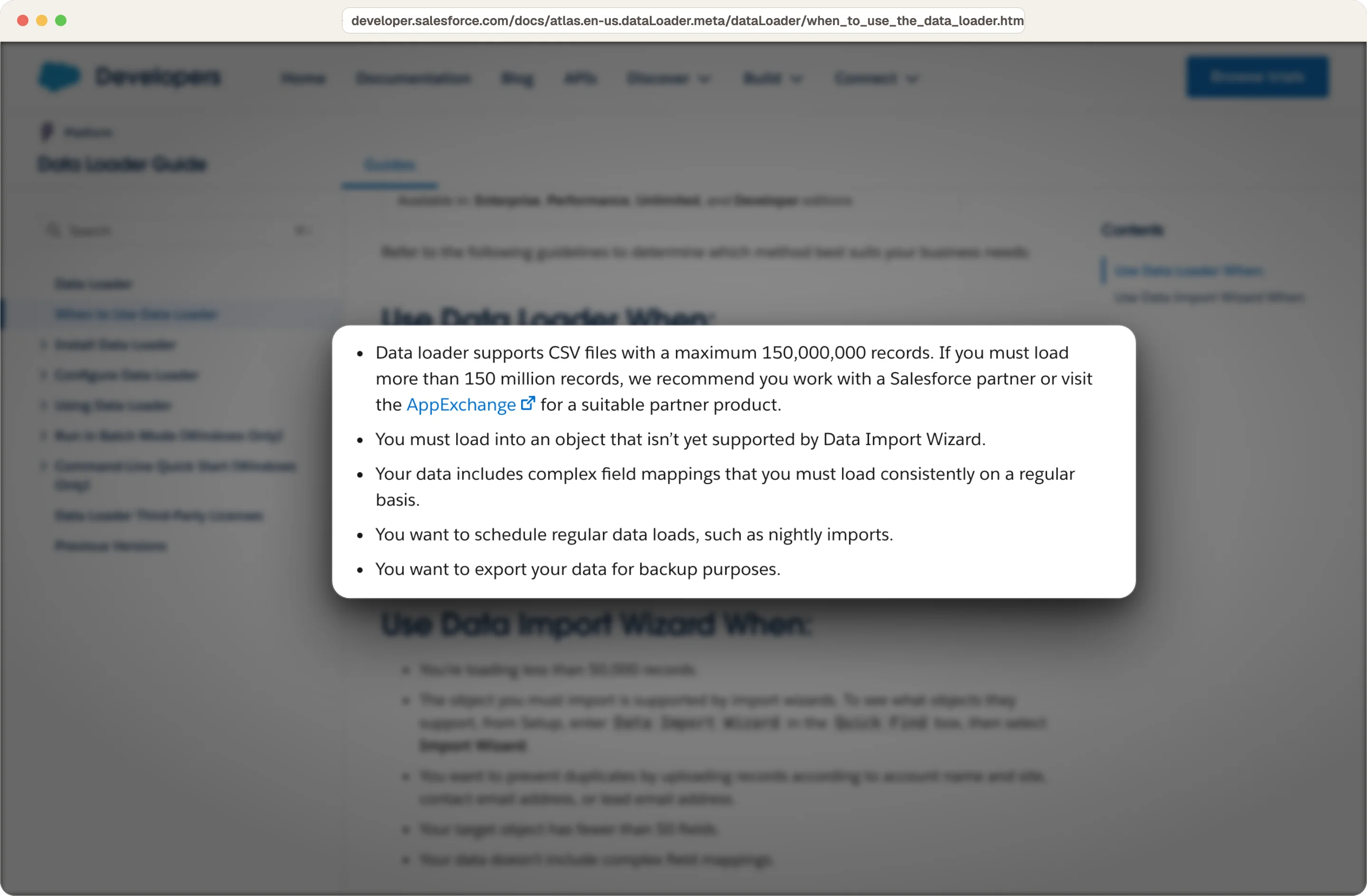
Source: Salesforce
A migration partner for complex CRM data
We'd bring in a partner or a dedicated migration tool when you have many custom objects, years of email history, or associations the native tools can't rebuild.
Step 6: Test the move on sample data and check data accuracy with your reps
Never start with all of your data. An incremental data migration keeps business disruption low, so you move a small set of records first and choose it on purpose, like a few open deals for every rep, a handful of long-standing customers, and the records with the most associations and history.
Then check the migrated data in two ways. Use data validation to compare record counts and key data fields with the old CRM, and ask each rep to open their own deals in the new system and tell you what's missing or wrong. Reps spot broken timelines and wrong owners in minutes, because they know their deals better than any spreadsheet does.
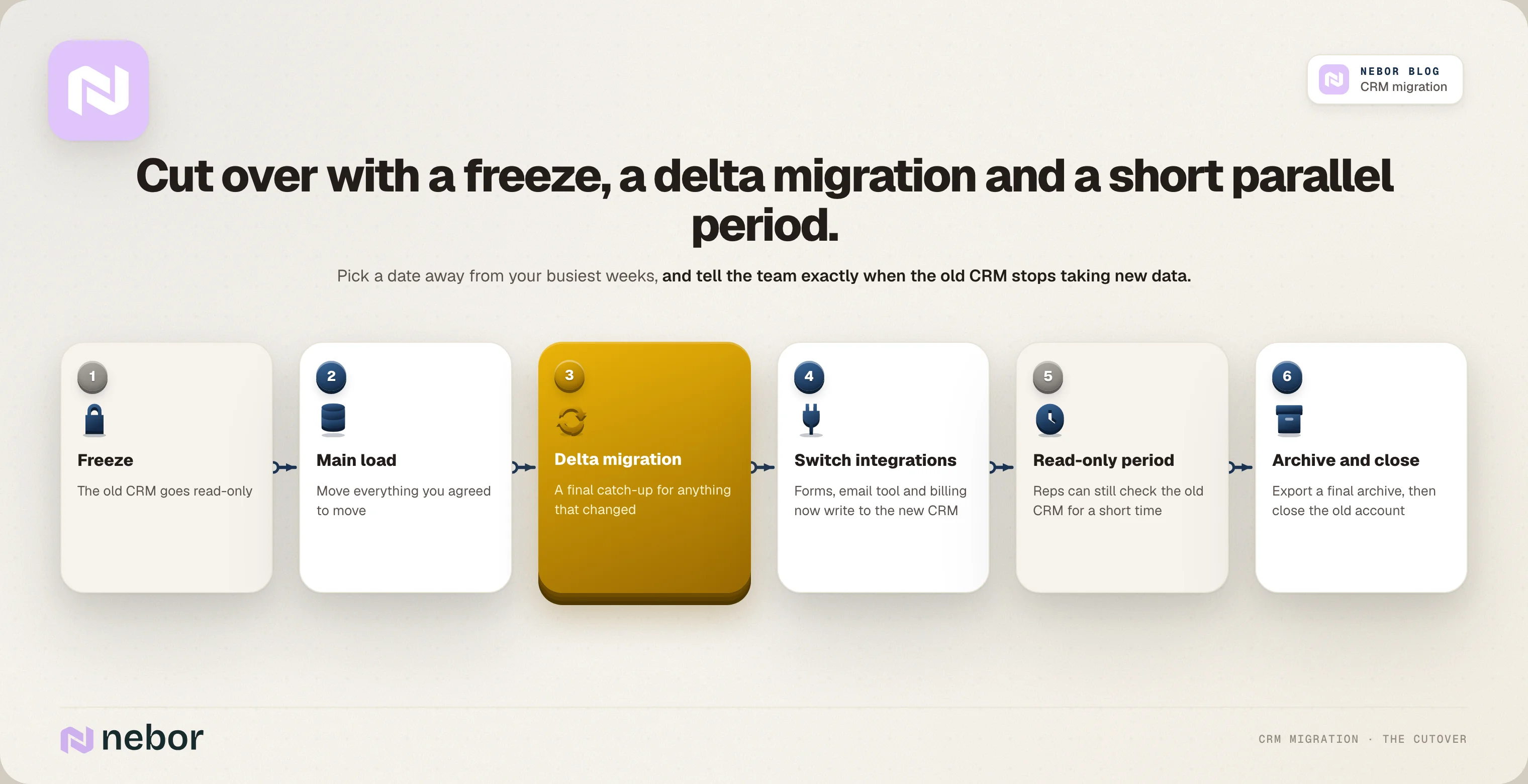
Step 7: Cut over with a freeze, a delta migration and a short parallel period
For a smooth migration, pick a cutover date away from your busiest weeks, like the end of a quarter, to protect business continuity. Tell the team exactly when the old CRM stops taking new data and where they should log activity from that moment.
On the day, you set the old CRM to read-only and do the final migration of the main load. Then you do a delta migration, which is a catch-up load for anything that changed since the initial migration. Next, you switch your forms, email tool and other integrations to the new CRM and check that new records arrive.
We'd keep the old CRM read-only for a short period as a reference, so reps can check anything that looks off. Once you're confident nothing is missing, export a final archive and close the old account.
Step 8: Rebuild your automations and reports instead of copying them
Workflows almost never translate one to one between CRM systems, and copying old automations usually copies old (or mean new) mistakes. So you need to write down what each important workflow is supposed to do, then build it fresh in the new CRM on top of the new data model.
Start with the automations that touch revenue first, like lead routing, lifecycle stages, the marketing to sales handoff and lead scoring. Then rebuild your reports from the questions leadership asks, like pipeline by stage, win rate and forecast, and check them against the old CRM's numbers before anyone relies on them.
How to get your team using the new CRM after the switch and keep them there
User adoption is the clearest sign of a successful CRM migration. When sales, marketing and service teams all work from one CRM, they finally see the same customer history, which makes the hand-offs between them smoother and gives customers a better experience.
If your reps keep notes in spreadsheets or log calls in the old system, the new CRM never becomes the record your team trusts.
Train each team on the work they do every day
Generic training on every feature doesn't stick. Targeted training sessions improve user adoption rates much more, where reps learn how to work their pipeline, managers learn the reports they review and support teams learn where customer history lives.
Pick a power user in every team
A power user is someone on the team who learns the new CRM first and answers their colleagues' questions. They solve small problems on the spot and tell you which ones keep coming back.
Treat low user adoption as a signal
Low user adoption usually means resistance, poor training or a setup that makes the job harder. Ask the reps who aren't using the CRM what slows them down, and fix the setup before you push harder on training.
How long a CRM data migration project takes, and what makes it faster or slower
There's no honest standard number for a CRM data migration project, because the timeline depends on your data more than on the CRM software. We've seen CRM consultants budget around 80 hours for a migration, and we think that's far more than it needs to take now that so much of the cleanup, mapping and validation can be automated. These are the things that decide it.
How old your CRM is
The older your company, the more historic data it has, and the more complex the migration gets.
How much data you move
More records and more years of history mean more mapping, more data validation and more checking.
How clean your data is
A tidy CRM moves quickly, and a messy one with data quality issues needs cleanup first.
How custom your setup is
Custom objects, record types and complex picklists add mapping work.
How many integrations you have
Every connected tool needs reconnecting and retesting, and anything you miss creates data silos.
How many automations you rebuild
This is often the biggest single part of the work, and it's the part most migration plans leave out.
How fast your team decides
Questions about what to keep and how stages should map can stall a project for weeks, so you need one person who owns those decisions.
The CRM data migration mistakes that cause data loss and turn a simple move into a rebuild
These are the data migration failures we see most often when a CRM needs fixing afterwards.
Lifting and shifting. Recreating the old data model field for field carries every unused property and every inconsistency into the new CRM.
Shared properties that don't match. Region, industry or segment with different values on the contact, company and deal leaves you with blanks and reports that disagree.
Moving everything. Old records and unused fields make the new CRM slower to use and harder to report on.
Cleaning after the move. Fixing data in the new CRM while automations and reports already depend on it is much harder.
Breaking associations. Contacts without companies and deals without contacts leave reps with empty timelines.
Copying workflows one to one. The new CRM works differently, and old logic often breaks in quiet ways.
Forgetting integrations and forms. New leads keep flowing into the old CRM, or into nowhere.
Unclear ownership. Decisions stall when nobody is responsible for the migration plan, the mapping and the sign-off.
How to check data integrity after your CRM migration, before you close the old system
A CRM data migration is done when your team can sell from the new CRM system and trusts what they see. These post migration checks are how we go about ensuring data integrity before the old system closes.
Record counts match between the old and new CRM systems
Every object you moved has the same number of records as the old CRM, minus what you chose to archive.
Associations and timelines are intact
A sample of contacts, companies and deals shows the right links and the full activity history.
Data fields, owners and stages are correct
Every open deal has the right owner and the right stage, and the key fields match the old records.
There's no data loss in your open pipeline
The value of open pipeline in the new CRM matches the old one.
Key reports agree with the old numbers
Pipeline by stage, win rate and forecast match the old numbers, or the differences are explained.
New data arrives in the new CRM
Forms, your email tool and other integrations are writing to the new CRM.
A CRM migration checklist you can work through with your team
Here's the whole data migration process as a checklist.
Count records, properties, workflows and reports in your existing CRM.
Agree what to move now, what to move with limited history and what to archive.
Design the new data model and write the data dictionary.
Merge duplicate records, standardize values and reassign orphaned records.
Take a full backup and write a rollback plan.
Build the data mapping document, including associations, stages and picklists.
Choose your method, whether that's native import, Smart Transfer, Salesforce tools or a partner.
Move sample data, validate it and have reps check their own deals.
Freeze the old CRM, move the main load and finish with a delta migration.
Reconnect integrations and forms, then confirm new records arrive.
Rebuild automations and reports, and train each team with a power user.
Do the post migration checks, export a final archive and close the old CRM.
Hire Nebor to move your CRM and fix the sales system around it
We plan a CRM data migration around what your reps and managers need to see on the first day in the new CRM.
We start in your current accounts and agree a fixed price for the scope. Then we audit what you have, design the new data model around how you sell, and clean and deduplicate the data before it moves. That covers pipelines, stages and properties that fit your process, lifecycle stages and routing rules between marketing and sales, and one owner per company.
We move the data, rebuild the automations and reports, and check every number against the old system before you switch.
Everything is set up in your own HubSpot or Salesforce account, and every build gets its own runbook. Your team is trained to make changes themselves, and we can stay on for post migration support and ongoing support while you settle in, because a smooth transition matters more for long-term success than the day of the switch.
Across the RevOps systems we build, clients save more than 20 hours a week of manual work.
If you're planning a move, book a meeting with us. We'll help you work out what to move, what to rebuild and what to leave behind.
What teams usually want to know before they start a CRM migration
What does lift and shift mean in a CRM migration?
It means moving your old CRM into the new one exactly as it is, with the same properties, pipelines and values. It's the fastest way to migrate, but it brings every unused field and every inconsistency along, so you lose the chance to start with a clean data model.
Can you do a CRM data migration yourself?
You can move simple, clean data yourself with HubSpot's import tool or Salesforce's Data Import Wizard. Once you have years of history, custom objects or properties that need to match across objects, it stops being a do-it-yourself project, because mistakes in the data model or the associations are hard to undo after go-live.
Can you migrate email history and attachments?
It depends on the tool you use. HubSpot's Smart Transfer handles attachments in one-time transfers, while a plain file import doesn't carry email history, so check before you promise reps their full history.
Is HubSpot Smart Transfer enough for a Salesforce to HubSpot migration?
It covers contacts, companies, deals, activities, users and properties, which is most of what teams need. You still need a Data Hub subscription for custom field mappings, and you still rebuild workflows, reports and lead scoring yourself.
How do you keep customer data secure during a data migration?
Limit access to export files and data migration tools to the few people doing the work, keep a backup you can restore, and delete working copies once the data migration is signed off. Data security matters on both sides, so check that your new CRM's permissions and access controls are set up before you import sensitive data.
Should you clean your data before or after the migration?
You should clean it before the move. Once your data is in the new CRM, automations and reports start depending on it, so every fix after the move is slower and riskier than the same fix in your export file.


Related Articles

By clicking Sign Up you're confirming that you agree with our Terms and Conditions.